
Excel library
Excel Shortcut: Instantly Jump to the Last Row with Data
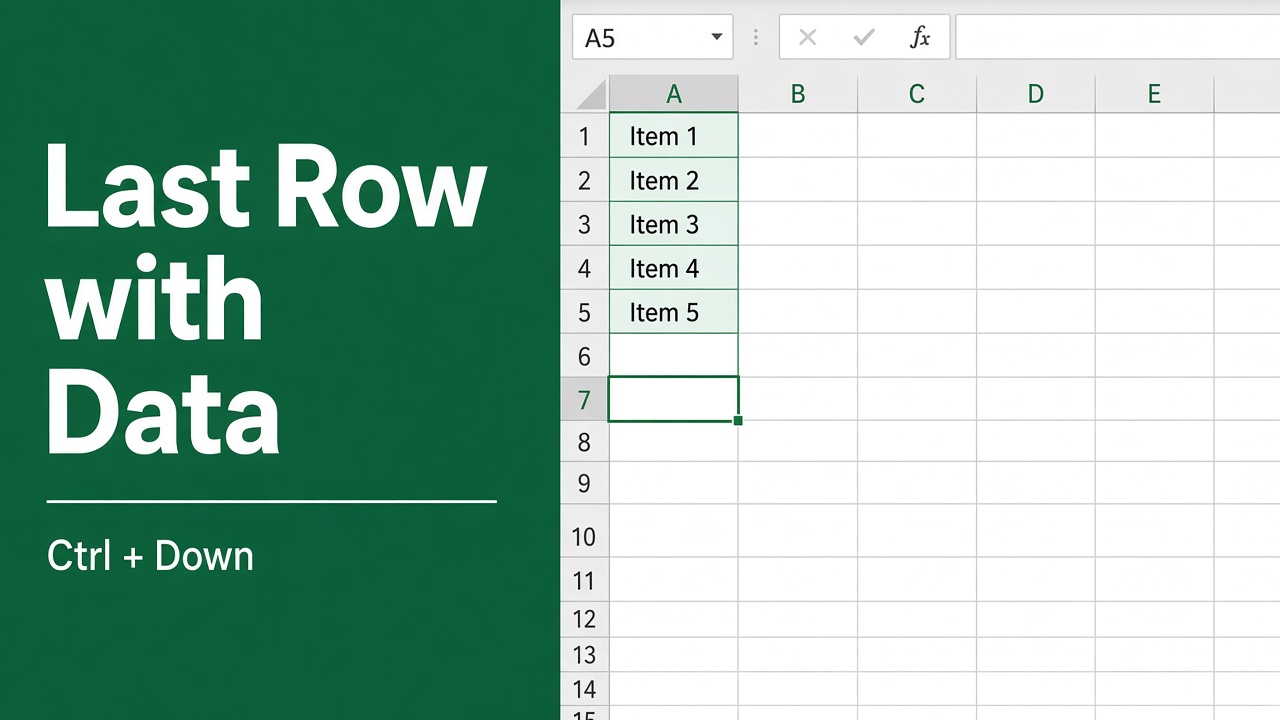
Scrolling down a long list to find the end wastes time. Excel has keyboard shortcuts that jump straight to the last row with data, even in sheets with thousands of rows. Here are the shortcuts, what to do when the column has blank cells, and a VBA option for macros.
Click any cell in the column and press Ctrl + Down Arrow (Command + Down Arrow on a Mac). Excel jumps to the last filled cell before the first blank.
If the column has gaps, go from the bottom instead: press Ctrl + Down Arrow until you reach the last row of the sheet, then Ctrl + Up Arrow to land on the true last row with data. Add Shift (Ctrl + Shift + Down Arrow) to select everything on the way.
Key Takeaways:
- Jumping to the last row with data in Excel can save you time and enhance your spreadsheet navigation efficiency.
- Keyboard shortcuts like Ctrl+Down and Ctrl+Up Arrow allow you to move to the last and first row with data, respectively.
- Ctrl+Right and Ctrl+Left Arrow shortcuts help you navigate within a row quickly.
- Ctrl+End and Ctrl+Home shortcuts allow you to jump to the last right-most and first left-most cell of a table.
- Other Excel shortcuts, such as End, Home, Arrow Keys, Tab, Ctrl+PageDown, and Ctrl+PageUp, also contribute to efficient navigation.
- VBA programming can be used to automate navigation to the last row.
- Excel tables and scroll bars provide additional methods for navigating within a spreadsheet.
Using Ctrl+Down Arrow and Ctrl+Up Arrow
One of the keyboard shortcuts you can use to jump to the last row with data is Ctrl+Down Arrow. This shortcut moves the cursor to the last row with data, but only if there are no blank cells in the column. It works well for columns with data in all cells, but may stop before each empty cell if there are blanks. Similarly, Ctrl+Up Arrow moves the cursor to the first row with data before a blank row. These shortcuts are referred to as moving “to the edge of the current data region in a worksheet” by Microsoft. For the reverse, see the shortcut to go to the first row with data.
Here’s a step-by-step guide on how to use these shortcuts:
- Select the cell where you want to start navigating.
- Press and hold the Ctrl key on your keyboard.
- Press the Down Arrow key to jump to the last row with data or the Up Arrow key to jump to the first row with data.
- Release the Ctrl key to stay at the desired location.
Note that if there are blank cells in the column, Ctrl+Down Arrow may not take you to the very last row with data, and Ctrl+Up Arrow may not take you to the first row with data before a blank row. You can adjust the data range to ensure accurate navigation.
Example:
Suppose you have a spreadsheet with data in cells A1:A10, but cell A5 is blank. If you press Ctrl+Down Arrow from cell A1, it will take you to cell A4 instead of A10. In this case, you need to adjust the data range by selecting cells A1:A10 and removing the blank cell (A5), allowing Ctrl+Down Arrow to take you directly to A10.
| Shortcut | Description |
|---|---|
| Ctrl+Down Arrow | Moves the cursor to the last row with data in a column, excluding blank cells |
| Ctrl+Up Arrow | Moves the cursor to the first row with data before a blank row |
Using Ctrl+Right Arrow and Ctrl+Left Arrow
To efficiently navigate within a row in your spreadsheet, Excel offers two handy shortcuts: Ctrl+Right Arrow and Ctrl+Left Arrow. These shortcuts allow you to swiftly move to the rightmost or leftmost location in a row, respectively.
By using Ctrl+Right Arrow, you can effortlessly jump to the rightmost location in a row, skipping over any empty cells in between. This can be particularly useful when you want to reach the end of a row with data quickly.
Conversely, Ctrl+Left Arrow enables you to navigate to the leftmost location in a row. This shortcut helps you easily jump to the first cell with data in a row, regardless of any preceding empty cells.
These shortcuts provide a convenient way to streamline your workflow and improve productivity when working with rows in Excel.
Let’s take a look at a quick example:
| Column A | Column B | Column C | Column D |
|---|---|---|---|
| Data | Data | Data | Data |
| Data | |||
| Data | Data |
Given the table above, if you are in the first cell of the second row and press Ctrl+Right Arrow, your cursor will jump to the rightmost location in that row (Cell D2). Similarly, if you press Ctrl+Left Arrow, your cursor will move to the leftmost location (Cell A2).
By utilizing these keyboard shortcuts, you can easily navigate within rows, enhancing your efficiency when working with large datasets.
Using Ctrl+End and Ctrl+Home
When working with tables in Excel, it’s essential to know how to quickly navigate to the last right-most cell or the first left-most cell. Luckily, Excel provides two reliable shortcuts for this purpose: Ctrl+End and Ctrl+Home.
Ctrl+End: This shortcut allows you to jump directly to the last right-most cell of the table. It’s a convenient way to locate the very end of your worksheet without scrolling or manually searching for the last cell. By pressing Ctrl+End, you can save time and streamline your navigation within large tables.
Ctrl+Home: On the other hand, Ctrl+Home enables you to move the cursor to the first left-most cell of the table. It’s particularly useful when you want to jump back to the beginning of your table quickly. Instead of scrolling or using the arrow keys, Ctrl+Home takes you directly to the starting point.
By leveraging these shortcuts, you can efficiently navigate to the last right-most cell and the first left-most cell of your table, enhancing your productivity and workflow.
Example:
Let’s say you have a large dataset in Excel, and you want to jump to the last cell of the table. Instead of manually scrolling to the last cell, you can simply press Ctrl+End, and Excel will take you directly to the last right-most cell in the table. Similarly, if you want to return to the first cell of the table, you can use Ctrl+Home.
| Employee ID | Name | Department | Salary |
|---|---|---|---|
| 001 | John Smith | Finance | $60,000 |
| 002 | Jane Johnson | Marketing | $55,000 |
| 003 | Michael Brown | HR | $50,000 |
| 004 | Emily Davis | Operations | $65,000 |
| 005 | David Miller | IT | $70,000 |
In the given table, pressing Ctrl+End will take you to the cell with the value “$70,000”, located in the bottom right corner. Conversely, using Ctrl+Home will navigate you to the cell with the value “001” in the top-left corner of the table.
Other Excel Shortcuts for Navigation
Excel provides users with a range of additional shortcuts for seamless navigation and enhanced productivity. These shortcuts can help you easily access specific cells, rows, sheets, and more, saving you valuable time while working on your spreadsheets.
End and Home Keys
- End Key: Pressing End on its own turns on End mode (shown in the status bar). Then press an arrow key: End, Down Arrow does the same jump as Ctrl + Down Arrow.
- Home Key: On the other hand, the Home key takes you to the first cell of the active row, helping you quickly navigate to the beginning of your data.
Arrow Keys
- Arrow Keys: The arrow keys enable you to move across cells or rows in the direction of the activated key. Simply press the arrow key corresponding to the desired direction, and the cursor will move accordingly.
Tab and Shift+Tab
- Tab Key: Pressing Tab moves the cursor one cell to the right, facilitating horizontal navigation within your spreadsheet.
- Shift+Tab: Shift+Tab is the reverse action, allowing you to move to the previous cell.
Ctrl+PageDown and Ctrl+PageUp
- Ctrl+PageDown: By using Ctrl+PageDown, you can switch to the next sheet within a workbook, enabling seamless navigation between different sheets.
- Ctrl+PageUp: On the other hand, Ctrl+PageUp moves you to the previous sheet, providing easy access to different sections of your workbook.
These additional shortcuts, including the End and Home keys, arrow keys, Tab, and Ctrl+PageDown/Ctrl+PageUp, offer further flexibility and efficiency when working in Excel. Incorporating these shortcuts into your workflow can significantly streamline your navigation process, ultimately leading to improved productivity and time savings in your day-to-day spreadsheet tasks.
Using VBA to Go to the Last Row
To go to the last row in Excel using VBA (Visual Basic for Applications), you can use the End method in combination with the xlUp constant. Here’s a sample code snippet to achieve this:
Sub GoToLastRow()

    Dim lastRow As Long
    ' Find the last used row in column A

    lastRow = Cells(Rows.Count, 1).End(xlUp).Row
    ' Activate the cell in the last row of column A

    Cells(lastRow, 1).Select

End Sub
This VBA subroutine will find the last used row in column A of the active worksheet and then select that cell. You can adjust the column index (1 in this case) according to the column you want to find the last row for.
Utilizing Excel Table Navigation and Scroll Bars
Excel tables greatly facilitate the management and analysis of data. When working with an Excel table, you can effortlessly navigate to the last row by simply clicking anywhere within the table and using the Ctrl+Arrow Down shortcut. This feature is particularly useful when you have a large dataset and need to quickly access the last row.
In addition to table navigation, Excel’s scroll bars provide a convenient way to move through extensive data sets. By dragging the scroll bar to its lowest position vertically, you can smoothly scroll down to the last row of your table. As you move the scroll bar, you can easily visualize and analyze the data without needing to rely on traditional scrolling methods.
What about filtered data? You don’t need to clear the filter. Ctrl + Down Arrow skips the hidden rows and lands on the last visible row of the column.
Note on Ctrl + End: it goes to the last cell Excel considers “used” on the whole sheet, which can be below your data if rows were deleted or formatted. Saving the workbook usually resets it.
FAQ
What is the Excel shortcut to jump to the last row with data?
The shortcut Ctrl+Down Arrow can be used to quickly move to the last row with data in a column, as long as there are no blank cells in the column. Ctrl+Up Arrow moves to the first row with data before a blank row.
How do I navigate within a row in Excel?
To move to the rightmost location in a row, use the Ctrl+Right Arrow shortcut. Conversely, Ctrl+Left Arrow moves the cursor to the leftmost location in a row, allowing for quick navigation.
How can I jump to the end or beginning of a table in Excel?
Ctrl+End moves to the last used cell on the whole worksheet (the bottom-right corner of all data), while Ctrl+Home goes to cell A1, or the top-left cell below any frozen panes.
Are there any other Excel shortcuts for navigation?
Yes, there are additional shortcuts available. Pressing End and then an arrow key jumps like Ctrl + arrow, while the Home key takes you to the first cell of the active row. Arrow keys allow for moving one cell or row in the direction of the activated key. Pressing Tab moves one cell to the right, and Shift+Tab moves to the previous cell. Ctrl+PageDown switches to the next sheet of a workbook, and Ctrl+PageUp moves to the previous sheet.
Can I use VBA to navigate to the last row in Excel?
Absolutely! If you’re familiar with Visual Basic for Applications (VBA), you can use this programming language to jump to the last row programmatically. Executing a VBA code snippet allows for easy navigation, especially when working with complex workbooks and repetitive tasks.
How can I navigate within an Excel table?
Clicking anywhere within the table and using Ctrl+Arrow Down allows you to go directly to the last row. Additionally, Excel’s scroll bars can be used to navigate through large datasets. By dragging the scroll bar to its lowest position vertically, you can effortlessly reach the last row.
Can I navigate to the last row in filtered data?
Yes. Ctrl + Down Arrow skips rows hidden by the filter and stops on the last visible row, so you don’t need to clear the filter.