
Excel library
Excel Shortcut: Instantly Navigate Back to the First Sheet
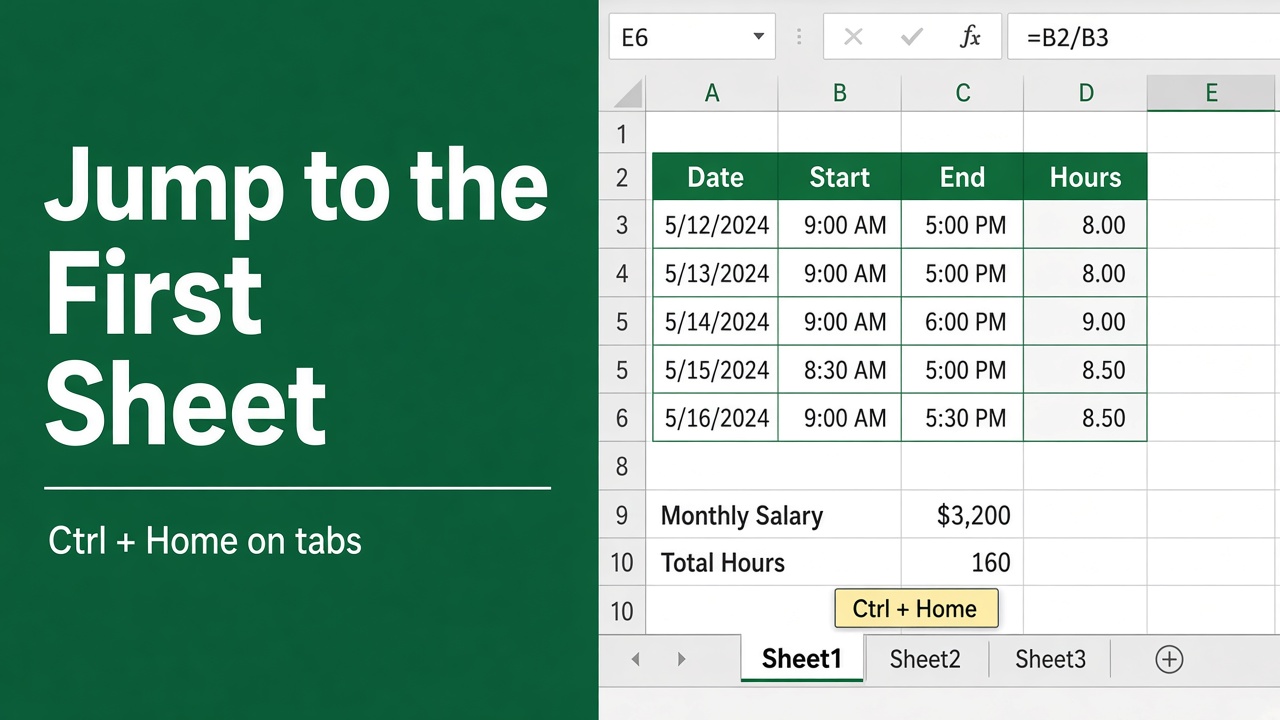
In a workbook with dozens of tabs, getting back to the first sheet can mean a lot of scrolling. Here are the quickest ways to jump there with the mouse or keyboard, plus related sheet shortcuts.
Excel has no single shortcut to jump to the first sheet. The fastest options:
- Right-click the sheet scroll arrows (bottom left, next to the tabs). An Activate list of every sheet opens; pick the first one.
- Ctrl + click the left scroll arrow to scroll the tabs to the start, then click the first tab.
- Keyboard only: hold Ctrl + Page Up until you reach the first sheet.
Key Takeaways:
- Excel shortcuts can help you navigate back to the first sheet instantly.
- In Excel 2010 and earlier versions, dedicated buttons were available to scroll to the first or last sheet. In Excel 2013 and onwards, these buttons were consolidated into the sheet navigation buttons.
- Keyboard shortcuts like Ctrl+Page Down and Ctrl+Page Up can be used to move between sheets.
- Ctrl and Shift keys can be used to select multiple sheets and perform actions on them simultaneously.
- By using the Tab Hound Add-in, you can enhance your Excel experience and gain additional features for sheet navigation and modification.
Navigating to the First or Last Sheet in Excel
In Excel 2010 and earlier versions, there were dedicated buttons to scroll to the first or last sheet in the workbook. However, starting from Excel 2013, these buttons were consolidated into the sheet navigation buttons in the bottom left corner of the application window. To quickly navigate to the first or last sheet, you need to hold the Ctrl key while clicking the sheet navigation buttons. Once you have scrolled to the desired sheet, you can click on it to select it.
In most spreadsheet applications like Microsoft Excel or Google Sheets, you can usually use the following keyboard shortcut to navigate back to the first sheet:
- Right-click the navigation arrows to the left of the sheet tabs: the Activate dialog lists every sheet, so you can jump straight to the first one. (Ctrl + Home only goes to cell A1 of the current sheet; it doesn’t change sheets.)
Alternatively, you can directly select the first sheet by:
- Pressing Ctrl + Page Up repeatedly: each press moves one sheet to the left, so hold it down to run back to the first sheet.
Remember that these shortcuts might slightly vary depending on the specific spreadsheet software you’re using, but these are the common shortcuts used in popular spreadsheet applications.
Keyboard Shortcuts to Move Between Sheets
If you prefer a faster way to navigate between sheets in Excel, keyboard shortcuts provide a convenient solution. Utilizing these shortcuts can save you time and enhance your productivity. With just a few key combinations, you can effortlessly move between sheets without the need to manually click on each tab. Here are two keyboard shortcuts that will help streamline your workflow:
Ctrl+Page Down: Selects the Next Sheet
To quickly select the next sheet in your workbook, simply press the Ctrl key followed by the Page Down key. This shortcut allows you to seamlessly transition from one sheet to another, making it ideal for scenarios where you need to reference or modify data across different sheets. By arranging the sheets side by side, you can easily copy/paste or compare data without the hassle of navigating through the entire workbook. To step through the sheets in order, see the shortcut to change sheets.
Ctrl+Page Up: Selects the Previous Sheet
Similarly, to select the previous sheet, use the Ctrl key combined with the Page Up key. This shortcut is particularly useful when you need to toggle back and forth between two sheets or review your work step-by-step. It eliminates the need to manually click on each tab, providing a much faster and efficient way to navigate through your workbook.
By leveraging these keyboard shortcuts, you can move between sheets effortlessly and expedite your Excel tasks. Whether you’re working on complex spreadsheets or analyzing data across multiple tabs, these shortcuts will undoubtedly enhance your Excel experience.
| Keyboard Shortcut | Action |
|---|---|
| Ctrl+Page Down | Selects the next sheet |
| Ctrl+Page Up | Selects the previous sheet |
Selecting Multiple Sheets in Excel
In Microsoft Excel, you often work with multiple sheets to organize and analyze data. To efficiently manage and modify content across multiple sheets, it’s essential to know how to select multiple sheets at once. By using the Ctrl and Shift keys along with some handy keyboard shortcuts, you can easily select and work with multiple sheets simultaneously.
To select multiple sheets in Excel, follow these steps:
- Hold down the Ctrl key on your keyboard.
- Left-click on the sheet tabs that you want to select. Each tab clicked will be added to the group of selected sheets.
If you prefer a different method, you can also use the Shift key to select a range of sheets at once:
- Click on the first sheet you want to select.
- Hold down the Shift key.
- Left-click on the last sheet you want to include in the selection. All sheets from the active sheet to the clicked sheet will be selected.
Once you have selected multiple sheets, you can perform various actions on all of them simultaneously. For example, you can format cells, enter data, apply formulas, or modify headers and footers. This time-saving feature allows you to make changes across multiple sheets without the need to repeat the same steps individually.
In addition to selecting multiple sheets, you can also navigate between them using keyboard shortcuts. When multiple sheets are selected, you can press Ctrl+Shift+Page Up to select the previous sheet or Ctrl+Shift+Page Down to select the next sheet in the selected group.
By mastering the art of selecting multiple sheets in Excel, you can efficiently manage and manipulate data across your workbook, saving valuable time and effort.
Hiding and Unhiding Multiple Sheets in Excel
In Excel, organizing your workbook becomes effortless with the ability to hide and unhide multiple sheets. To hide multiple sheets, follow these simple steps:
- Select the desired sheets using the methods mentioned earlier.
- Right-click on one of the selected tabs.
- Choose the “Hide” option from the context menu.
This will instantly hide the selected sheets, keeping your workbook clutter-free and focused.
However, unhiding multiple sheets directly in Excel can be a bit tricky. When you right-click on a tab and choose “Unhide,” older versions only let you select one sheet from the list of hidden sheets. In Microsoft 365 you can Ctrl-click or Shift-click several names in the Unhide dialog and unhide them together.
Fortunately, there is a solution to unhide multiple sheets at once using macros:
- Press Alt + F11 to open the Visual Basic Editor.
- Click Insert > Module.
- Copy and paste the following code into the code window:
Sub UnhideAllSheets()
    Dim ws As Worksheet
    For Each ws In Worksheets
        ws.Visible = xlSheetVisible
    Next ws
End Sub
4. Press F5 to run the macro, and all the hidden sheets will be instantly unhidden.
This method allows you to regain access to all the sheets you previously hid, saving you time and ensuring better organization in your Excel workbook.
Using the Tab Hound Add-in for Excel
If you frequently work with workbooks containing numerous sheets, the Tab Hound Add-in can be a valuable tool. Developed with VBA and built-in Excel tools, the Tab Hound Add-in provides features that make it faster and easier to navigate and modify sheets in your workbooks.
The add-in allows you to quickly jump to the first or last sheet, search for specific sheets, and perform various other functions. With just a few clicks, you can access any sheet in your workbook, saving you time and effort. In addition, the Tab Hound Add-in includes the ability to unhide multiple sheets, which is not directly possible in Excel. This feature alone can significantly streamline your workflow and improve productivity.
By integrating the Tab Hound Add-in into your Excel workflow, you can enhance your overall Excel experience. Say goodbye to manual searching and navigating through multiple sheets and say hello to a more efficient and seamless process. With its user-friendly interface and powerful features, the Tab Hound Add-in is a must-have tool for any Excel power user.
FAQ
How can I quickly navigate back to the first sheet in Excel?
Right-click the sheet navigation arrows at the bottom left of the window and choose the first sheet from the Activate list. From the keyboard, hold Ctrl + Page Up until you reach it.
How do I duplicate sheets in Excel using shortcuts?
To make a duplicate copy of a sheet, you can use the Ctrl+Drag method. Left-click and hold on the sheet you want to copy, press and hold the Ctrl key, and drag the sheet to the right until the down arrow appears. Then release the left mouse button and the Ctrl key. This shortcut is faster than using the “Move or Copy…” option from the right-click menu. It can also be used when multiple sheets are selected.
How can I navigate to the first or last sheet in Excel?
Starting from Excel 2013, the dedicated buttons for scrolling to the first or last sheet were consolidated into the sheet navigation buttons in the bottom left corner of the application window. To navigate to the first or last sheet, hold the Ctrl key while clicking the sheet navigation buttons. Once you have scrolled to the desired sheet, you can click on it to select it.
Are there any keyboard shortcuts for moving between sheets in Excel?
Yes, there are two keyboard shortcuts you can use. Pressing Ctrl+Page Down selects the next sheet, while pressing Ctrl+Page Up selects the previous sheet. These shortcuts are especially useful when you need to toggle back and forth between two sheets. By arranging the sheets next to each other, you can easily copy/paste or audit data without navigating throughout the workbook.
How can I select multiple sheets in Excel?
To select multiple sheets, you can use the Ctrl and Shift keys. By holding the Ctrl key and left-clicking the sheet tabs, you can add them to the group of selected sheets. Alternatively, you can hold the Shift key and left-click a sheet to select all sheets from the active sheet to the clicked sheet. The keyboard shortcuts Ctrl+Shift+Page Up and Ctrl+Shift+Page Down can be used to select the previous or next sheet, respectively, when multiple sheets are selected.
How can I hide and unhide multiple sheets in Excel?
To hide multiple sheets, select the sheets by using the Ctrl or Shift key and left-clicking the sheet tabs. Then, right-click one of the selected tabs and choose the “Hide” option. In Microsoft 365, the Unhide dialog lets you select several sheets at once. In older versions, use a short macro to unhide them all.
What is the Tab Hound Add-in for Excel?
The Tab Hound Add-in is a valuable tool for working with workbooks containing numerous sheets. It provides features that make it faster and easier to navigate and modify sheets in your workbooks. The add-in allows you to quickly jump to the first or last sheet, search for specific sheets, and perform various other functions. It also includes the ability to unhide multiple sheets, which is not directly possible in Excel.