
Excel library
How to Jump to Linked Cells in Excel using a Shortcut?
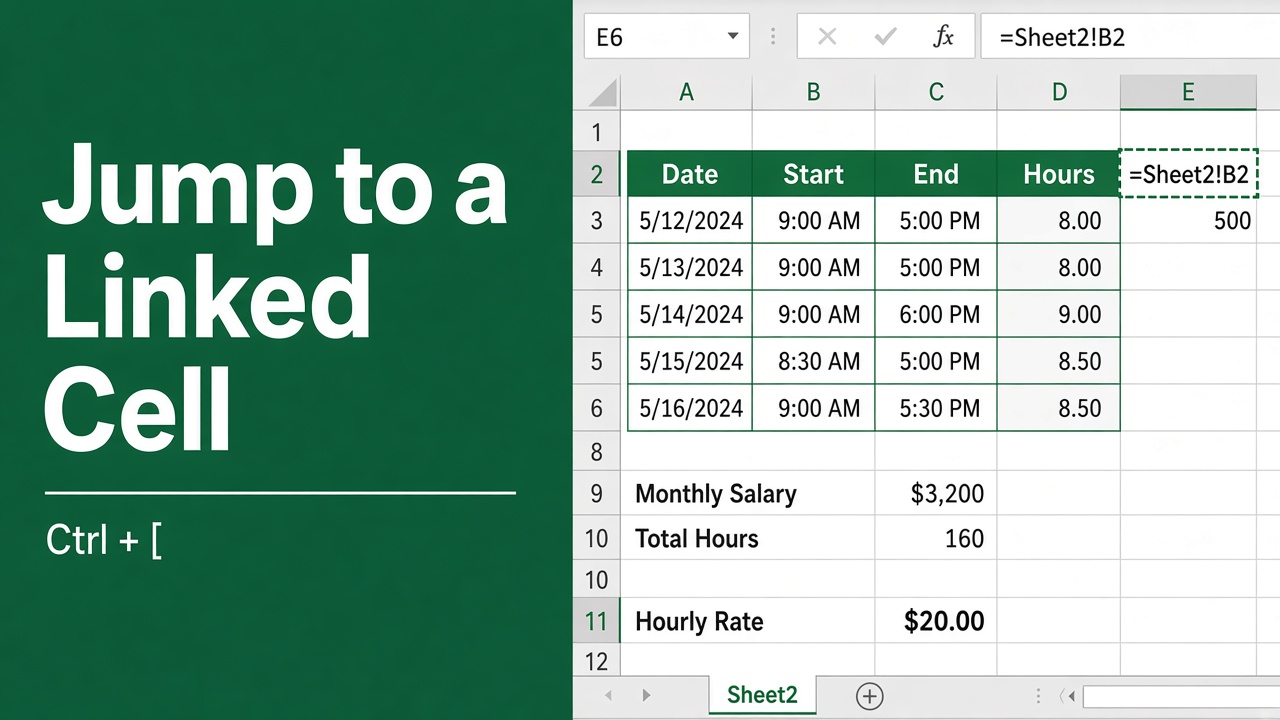
When it comes to working with spreadsheets in Excel, efficiency is key. Navigating through complex formulas and verifying the source of linked data can be a time-consuming task. But here’s a surprising fact – by mastering the excel shortcut jump to linked cell technique, you can instantly jump to cells that are linked to a particular cell, even if they are in a different worksheet or workbook.
Select the cell with the formula and press Ctrl + [ to jump to the cell it refers to, even on another sheet. To get back, press F5 and then Enter; the Go To box remembers where you came from.
Ctrl + ] does the opposite: it selects the cells whose formulas refer to the current cell.
In this article, we’ll explore the excel shortcut to jump to linked cells and show you how to navigate your spreadsheets more efficiently, resulting in a quicker workflow in Excel. We’ll also learn about some alternate methods that can help you achieve similar results, providing you with a comprehensive toolkit to streamline your Excel experience.
The Excel Shortcut to Jump to Linked Cells
When working with Excel formulas, it’s important to be able to quickly navigate to the cells that are linked to a particular formula. This not only helps you verify the accuracy of your formulas but also saves you time and effort in locating the source of your data. Fortunately, Excel provides a powerful keyboard shortcut that allows you to instantly jump to linked cells with ease.
To use the Excel shortcut to jump to linked cells, follow these simple steps:
- Select the cell that contains the formula you want to navigate to.
- Press “Ctrl + [“.
This shortcut will take you to the first cell that is used in the formula, regardless of whether the linked workbook is open or closed. It’s a convenient way to quickly find the source of your data and ensure that your formulas are referencing the correct cells.
Example:
Imagine you have a spreadsheet with sales data in one sheet (Sheet1) and a summary sheet (Sheet2). In Sheet2, cell B2 uses a formula =Sheet1!A10 to pull in the total sales amount.
Here’s how the shortcut jumps you to the linked cell:
- Click on cell B2 in Sheet2 (the cell with the formula).
- Press Ctrl + [.
This shortcut will instantly take you to cell A10 in Sheet1, the cell that your formula references!
The beauty of this shortcut lies in its simplicity and effectiveness. It eliminates the need for manual navigation and allows you to focus on the data itself. Whether you’re working with a small spreadsheet or a complex workbook with multiple sheets, this shortcut can save you valuable time and effort.
Alternate Methods to Jump to Linked Cells in Excel
While the keyboard shortcut (Ctrl + [) is the quickest way to jump to linked cells, there are a couple of other methods that can achieve similar results. Let’s explore these alternatives and see how they can complement your workflow.
You can also jump to the top of any column.
1) Using a Combination of Shortcut Keys:
To go directly to a cell reference within a formula in Microsoft Excel, you can use the following keyboard shortcut:
- First, select the cell containing the formula in which you’re interested.
- Then, if you’re on Windows, press F2 to edit the cell; if you’re on a Mac, use Control + U. This will put the cursor in the formula bar or make the cell editable, highlighting the formula.
- While in edit mode, select the cell reference you want (like Sheet1!A10) by dragging over it or using Shift + arrow keys, and press Ctrl + C to copy it.
- Press Esc to leave the cell, press F5 to open Go To, paste the reference with Ctrl + V, and press Enter. Excel jumps to that cell.
Please note, if the cell reference is on a different worksheet, Excel will switch to that sheet. However, the exact keyboard shortcut might vary slightly depending on your Excel version and system configuration.
2) Trace Precedents:
This method involves using the built-in “Trace Precedents” feature. Here’s how:
- Click on the cell containing the formula.
- Go to the Formulas tab on the ribbon.
- Click the Trace Precedents button. This will highlight all the cells linked to the formula with arrows.
- Double-click on the arrow pointing to the specific cell you want to jump to.
The Trace Precedents feature provides a visual representation of the cells that are linked to your formula. It’s particularly useful when you have a complex formula that references multiple cells across different sheets or workbooks. By double-clicking on the arrow, you can quickly navigate to the source cell and verify its contents.
3) Go To Dialog:
This method uses the “Go To” dialog box:
- Click on the cell containing the formula and press Ctrl + [ to jump to the linked cell.
- Press F5 to open the “Go To” dialog box.
- The “Reference” box already holds the address of the cell you just left (the one with the formula).
- Press Enter (or click OK), and Excel jumps you back to the formula cell.
The Go To dialog box is a versatile tool that allows you to navigate to specific cells, ranges, or named ranges within your workbook. By using it in conjunction with formulas, you can easily locate the linked cells and jump to them with just a few clicks.
4) Using the Name Manager:
If your formula uses Named Ranges, you can navigate to these ranges through the Name Manager.
- Go to the Formulas tab, click “Name Manager”, and then you can see a list of all named ranges in your workbook.
- Double-clicking on a name in the list will take you directly to the named range.
Named Ranges are a powerful feature in Excel that allows you to assign meaningful names to specific cells or ranges. By using Named Ranges in your formulas, you can make your spreadsheets more readable and easier to maintain. The Name Manager provides a central location to manage and navigate to these named ranges, making it a valuable tool for formula navigation.
5) Using the Watch Window:
The Watch Window is a powerful tool for monitoring the value of cells across different worksheets. If you have a specific cell reference you want to keep an eye on, you can add it to the Watch Window.
- To open it, go to the Formulas tab, click “Watch Window”, and then add any cell by clicking “Add Watch”.
- This doesn’t navigate you to the cell directly but allows you to monitor its value and double-click on it in the Watch Window to jump to its location.
The Watch Window is particularly useful when you have a large spreadsheet with multiple dependencies. By adding key cells to the Watch Window, you can monitor their values in real-time and quickly navigate to them when needed. It’s a great way to keep track of important data points and ensure that your formulas are working as intended.
Final Thoughts
Mastering the Excel shortcut to jump to linked cells can significantly boost your productivity and streamline your workflow. By using the simple keyboard shortcut (Ctrl + [), you can instantly navigate to the source cells of your formulas, saving you time and effort in the process.
However, it’s important to note that there are several alternate methods available as well. Whether you prefer using a combination of shortcut keys, the Trace Precedents feature, the Go To dialog box, the Name Manager, or the Watch Window, Excel provides a range of tools to help you navigate your spreadsheets more efficiently.