
Excel library
Excel Shortcut to Jump to the Formula Bar
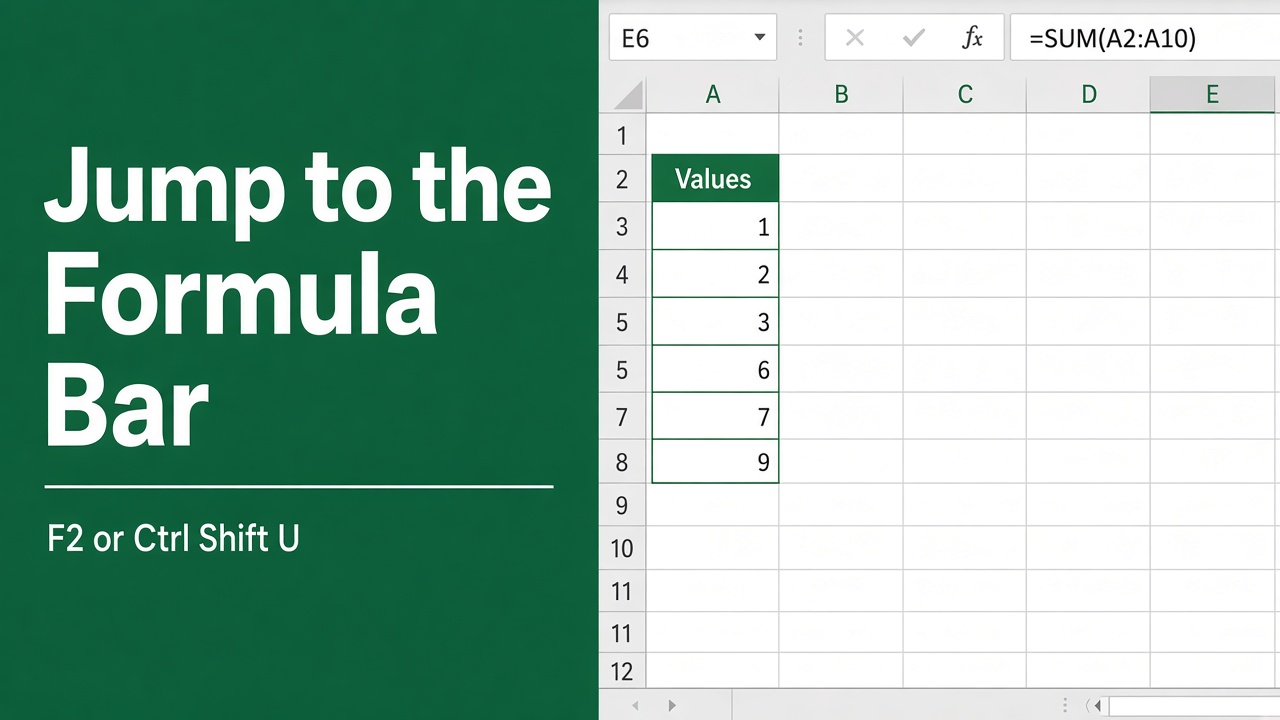
The formula bar is the long box above the grid that shows the full contents of the active cell. It is the easiest place to read and edit a long formula, and you can reach it without the mouse.
Press F2 to edit the active cell. By default Excel puts the cursor in the cell itself; to make F2 put the cursor in the formula bar instead, turn off File > Options > Advanced > Allow editing directly in cells. On a laptop where the F keys control volume or brightness, press Fn+F2. On a Mac, press Control+U (or F2).
What is the Formula Bar in Excel?
The formula bar sits between the ribbon and the column letters. It has two parts:
- Name Box: on the left, shows the address or name of the selected cell. Type an address such as
D250there and press Enter to jump to it. - Formula box: shows what is really stored in the active cell. For a formula cell, the cell shows the result and the formula box shows the formula.
If the formula bar is missing, turn it back on with View > Show > Formula Bar.
How to Jump to the Formula Bar with the Keyboard
F2 is Excel’s edit key. Where the cursor lands depends on one setting:
- Go to File > Options > Advanced.
- Under Editing options, clear Allow editing directly in cells.
- Click OK.
Now select a cell and press F2: the cursor goes to the end of the cell’s contents in the formula bar. Edit the formula, then press Enter to save it or Esc to cancel. With the setting left on (the default), F2 edits inside the cell, which works just as well for short formulas.
For long formulas, press Ctrl+Shift+U to expand the formula bar to several lines, and again to collapse it. Inside the formula bar, Alt+Enter starts a new line, so you can lay out a nested formula one argument per line. Excel ignores those line breaks when it calculates.
Keyboard Shortcuts Inside the Formula Bar
Once you are editing, these keys move around the formula without the mouse:
You can also use a shortcut to expand cell to fit text.
| Shortcut (Windows) | What it does |
|---|---|
| Home / End | Move to the start or end of the current line |
| Ctrl+Home / Ctrl+End | Move to the start or end of the whole entry, across lines |
| Ctrl+Left Arrow / Ctrl+Right Arrow | Move one word or argument at a time |
| Shift+Arrow keys | Select characters to the left or right |
| Shift+Home / Shift+End | Select to the start or end of the line |
| F4 | Cycle the reference under the cursor through $A$1, A$1, $A1 and A1 |
| F2 | Switch between Edit mode (arrows move the cursor) and Enter mode (arrows pick cells) |
| Alt+Enter | New line inside the formula |
| Enter / Esc | Save the change / cancel it |
| Ctrl+Enter | Save and keep the same cell selected |
Two more that help with functions: after typing a function name such as =VLOOKUP, press Ctrl+A to open the Function Arguments dialog, or Ctrl+Shift+A to insert the argument names as placeholders.
One shortcut that is often described as “go to the formula bar” does something else: Ctrl+` (grave accent) toggles Show Formulas, which displays formulas instead of results in every cell of the sheet. Press it again to switch back.
Why Edit in the Formula Bar?
- Long formulas fit: the formula bar is wider than most cells and expands to several lines, so nested formulas are easier to read.
- Nothing gets covered: editing in the cell can hide the cells next to it. The formula bar leaves the grid visible, which makes it easier to click references.
- Less mouse work: F2, the arrow keys and F4 cover most edits without leaving the keyboard.
Other Ways to Edit a Formula
- Click the formula bar: the cursor goes where you click.
- Double-click the cell: edits in the cell (when Allow editing directly in cells is on).
- Start typing: replaces the cell’s contents instead of editing them. Press Esc if you did this by mistake.
| Task | Windows | Mac |
|---|---|---|
| Edit the active cell | F2 | Control+U or F2 |
| Expand or collapse the formula bar | Ctrl+Shift+U | Control+Shift+U |
| New line in a formula | Alt+Enter | Option+Return |
| Show formulas in all cells | Ctrl+` | Control+` |
Final Thoughts
To reach the formula bar from the keyboard, turn off Allow editing directly in cells once and use F2 from then on. Add Ctrl+Shift+U for long formulas, Ctrl+arrow keys to move between arguments, and F4 to fix references, and you can build and repair most formulas without touching the mouse.
FAQs
What is the shortcut to jump to the formula bar in Excel?
Press F2. It puts the cursor in the formula bar once you turn off File > Options > Advanced > Allow editing directly in cells; with that setting on, F2 edits inside the cell. On a Mac, use Control+U or F2.
Why does F2 not work on my laptop?
Many laptops use the F keys for volume, brightness or other hardware controls. Hold Fn and press F2, or switch the Fn Lock (often Fn+Esc) so the F keys work as function keys.
How do I make the formula bar bigger?
Press Ctrl+Shift+U (Control+Shift+U on a Mac) to expand it to several lines, or drag its bottom edge down. Press the shortcut again to collapse it.
How do I move around a long formula without the mouse?
Use Ctrl+Left and Ctrl+Right Arrow to move one argument at a time, Home and End for the start and end of a line, and Shift with any of those to select. Press F2 while editing if the arrow keys start selecting cells instead of moving the cursor.
Does Ctrl+` take me to the formula bar?
No. Ctrl+` toggles Show Formulas, which displays the formula in every cell instead of its result. It does not move the cursor.