
Excel library
How to Convert Numbers to Words in Excel Using a Formula?
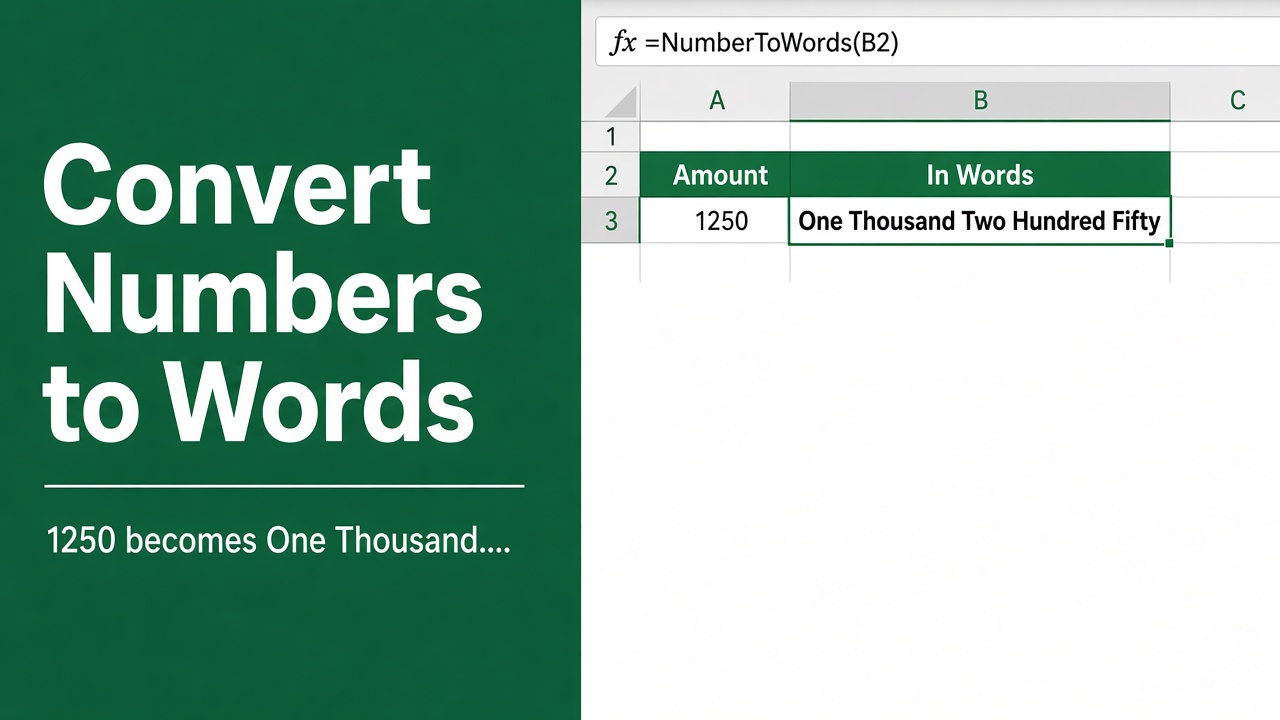
Have you ever needed to convert numbers to words in Excel? Maybe you’re creating an invoice or financial report and want the total amount to be written out in words for clarity and professionalism. Or perhaps you need to generate a check and want the dollar amount spelled out in words to meet banking requirements.
Excel has no built-in “number to words” function. In Microsoft 365, use the LET + LAMBDA formula in Method 1 below: it turns 12345 in A2 into Twelve Thousand Three Hundred Forty-Five. In older versions, add the short NumToWords VBA function in Method 2 and use =NumToWords(A2).
Whatever the reason, Excel provides a powerful way to convert numbers into their English word equivalents using a formula. In this comprehensive guide, we’ll walk you through the step-by-step process to set up and use this formula in your Excel spreadsheets.
Why Convert Numbers to Words in Excel?
There are several compelling reasons you might want to write out numbers in words in Excel:
- Enhanced Clarity and Professionalism: In formal business or financial documents, having the numeric amounts also written out in words adds clarity and a level of professionalism. It helps avoid ambiguity and makes your documents look more polished.
- Meeting Legal or Banking Requirements: Some legal documents or checks may require the amount to be stated in both numeric and word form for validity. Converting numbers to words in Excel helps you meet these requirements efficiently.
- Improved Accessibility: Having numbers spelled out in word form can make your Excel document more accessible for people using screen readers or other assistive technologies.
- Reduced Risk of Errors: Showing an amount in words alongside the numeric digits provides an extra layer of verification to ensure accuracy and catch costly typos or errors.
- Flexibility in Document Creation: Whether you’re generating invoices, financial statements, checks, or other number-heavy documents, having the ability to switch between numbers and words in Excel gives you more flexibility and control over your document’s presentation.
Method 1: One Formula with LET and LAMBDA (Microsoft 365)
Excel has no built-in function that spells out numbers, but in Microsoft 365 (and Excel 2024) a single formula can do it without lookup tables or macros. With the number in A2, enter this in B2 and copy it down:
=LET(num, INT(ABS(A2)),
  ones, {"","One","Two","Three","Four","Five","Six","Seven","Eight","Nine","Ten","Eleven","Twelve","Thirteen","Fourteen","Fifteen","Sixteen","Seventeen","Eighteen","Nineteen"},
  tens, {"","","Twenty","Thirty","Forty","Fifty","Sixty","Seventy","Eighty","Ninety"},
  words, LAMBDA(x, TRIM(IF(x>=100, INDEX(ones, INT(x/100)+1) & " Hundred ", "") & IF(MOD(x,100)<20, INDEX(ones, MOD(x,100)+1), INDEX(tens, INT(MOD(x,100)/10)+1) & IF(MOD(x,10)>0, "-" & INDEX(ones, MOD(x,10)+1), "")))),
  bil, INT(num/10^9),
  mil, INT(num/10^6) - bil*1000,
  thou, INT(num/1000) - INT(num/10^6)*1000,
  hund, num - INT(num/1000)*1000,
  IF(A2<0, "Minus ", "") & IF(num=0, "Zero", TRIM(IF(bil, words(bil) & " Billion ", "") & IF(mil, words(mil) & " Million ", "") & IF(thou, words(thou) & " Thousand ", "") & words(hund))))
Examples of what it returns:
| A2 | Result |
|---|---|
| 21 | Twenty-One |
| 1005 | One Thousand Five |
| 12345 | Twelve Thousand Three Hundred Forty-Five |
| 2500750 | Two Million Five Hundred Thousand Seven Hundred Fifty |
| -42 | Minus Forty-Two |
How the formula works
onesandtenshold the words, so no lookup tables are needed on the sheet.wordsis a small LAMBDA that spells out any number from 0 to 999, such as “Three Hundred Forty-Five”.bil,mil,thouandhundsplit the number into groups of three digits, and each group gets its word (Billion, Million, Thousand).- It handles whole numbers up to 999,999,999,999. Decimals are ignored.
For amounts with cents, add this at the very end of the formula to get results like “One Hundred Twenty-Three and 45/100”:
& IF(MOD(ABS(A2),1)>0, " and " & TEXT(ROUND(MOD(ABS(A2),1)*100,0),"00") & "/100", "")If your Excel uses semicolons as the argument separator (common in Europe), replace the commas between arguments with semicolons and the commas inside the {...} lists with backslashes.
Method 2: A Custom VBA Function (All Versions)
In Excel 2021 and older, which don’t have LAMBDA, add a short VBA function instead:
- Press Alt + F11 to open the VBA editor.
- Click Insert > Module and paste the code below.
- Close the editor and use
=NumToWords(A2)like any other formula. - Save the file as an Excel Macro-Enabled Workbook (.xlsm), or the function is lost.
Function NumToWords(ByVal n As Double) As String
    Dim ones, tens, groups, part As String, result As String
    Dim whole As Double, chunk As Long, i As Integer
    ones = Array("", "One", "Two", "Three", "Four", "Five", "Six", "Seven", "Eight", "Nine", "Ten", _
        "Eleven", "Twelve", "Thirteen", "Fourteen", "Fifteen", "Sixteen", "Seventeen", "Eighteen", "Nineteen")
    tens = Array("", "", "Twenty", "Thirty", "Forty", "Fifty", "Sixty", "Seventy", "Eighty", "Ninety")
    groups = Array("", " Thousand", " Million", " Billion", " Trillion")
    whole = Int(Abs(n))
    If whole = 0 Then result = "Zero"
    Do While whole > 0 And i <= 4
        chunk = whole - Int(whole / 1000) * 1000
        If chunk > 0 Then
            part = ""
            If chunk >= 100 Then part = ones(chunk \ 100) & " Hundred "
            If chunk Mod 100 < 20 Then
                part = part & ones(chunk Mod 100)
            Else
                part = part & tens((chunk Mod 100) \ 10)
                If chunk Mod 10 > 0 Then part = part & "-" & ones(chunk Mod 10)
            End If
            result = Trim(part) & groups(i) & " " & result
        End If
        whole = Int(whole / 1000)
        i = i + 1
    Loop
    If n < 0 Then result = "Minus " & result
    NumToWords = Trim(result)
End Function
It works up to the trillions and ignores decimals. For cents, use it as =NumToWords(A2) & " and " & TEXT(ROUND(MOD(ABS(A2),1)*100,0),"00") & "/100".
Potential Limitations and Workarounds
- Language: both methods write US English words. Edit the words in the
onesandtenslists for another style. - Currency wording: to write “Dollars” or “Rupees”, join it on, e.g.
=B2 & " Dollars Only". - Non-numeric data: a number stored as text still works, but a cell with letters returns #VALUE!.
- Indian numbering (lakh, crore) needs different grouping; these methods use thousand, million and billion.
Final Thoughts
Converting numbers to words in Excel is a valuable skill for creating professional-looking invoices, checks, and financial documents. With one LET + LAMBDA formula in Microsoft 365, or a short VBA function in older versions, you can translate numbers into English words automatically.
The step-by-step process outlined in this guide provides a solid starting point you can use and extend to fit your unique requirements. With a little practice and experimentation, you’ll be able to effortlessly set up numbers to words conversion in all your Excel workbooks, saving time and improving your documents’ clarity and impact.
FAQs
What is the purpose of converting numbers to words in Excel?
Converting numbers to words in Excel is useful for creating professional-looking invoices, checks, and financial documents where the numeric amount needs to be spelled out for clarity, legal compliance, or accessibility reasons.
How does the Excel formula for converting numbers to words work?
The formula splits the number into groups of three digits (billions, millions, thousands, hundreds), spells out each group with a small LAMBDA that knows the words for 0 to 999, and joins the groups with Billion, Million and Thousand.
Do I need lookup tables or a macro to convert numbers to words?
No lookup tables are needed. In Microsoft 365, the LET + LAMBDA formula holds the words inside the formula itself. In Excel 2021 and older, which lack LAMBDA, use the NumToWords VBA function and save the file as .xlsm.
Can the numbers to words formula in Excel handle negative numbers and decimals?
Yes. Negative numbers get “Minus” in front. Decimals are ignored by default; add the cents snippet from Method 1 to show them as a fraction, such as “and 45/100”.
What should I do if the numbers to words formula returns an error or unexpected result?
If the numbers to words formula returns an error or unexpected result, first check that your source data contains only valid numbers without any non-numeric characters, symbols, or blanks. Also check that you are on Microsoft 365, since older versions show #NAME? for LET and LAMBDA; use the VBA function there. If the issue persists, carefully review the formula structure and make any necessary adjustments to handle your specific use case.