
Excel library
How to Convert a Number to a Date in Excel Using Formulas?
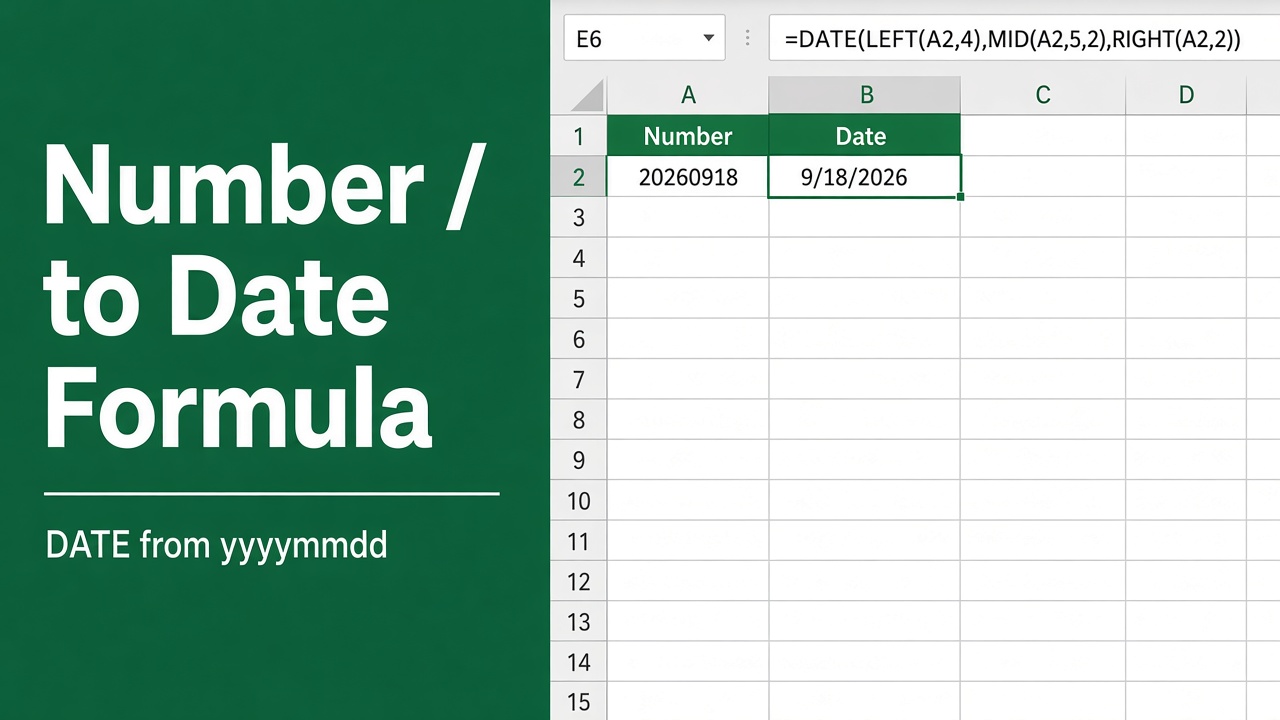
Are you working with a spreadsheet in Microsoft Excel that contains numbers representing dates, but they aren’t formatted properly as dates? You can easily convert a number to a date in Excel using a simple formula. In this article, we’ll show you step-by-step how to use the TEXT function along with custom number formatting to transform those numerical date values into formatted dates.
- 5 digits, like 44196: it’s already a date. Select it, press Ctrl + 1, and choose Date.
- 8 digits, like 20201231:
=DATE(LEFT(A2,4), MID(A2,5,2), RIGHT(A2,2)) - 10 digits, like 1609372800 (Unix time):
=A2/86400 + DATE(1970,1,1), formatted as a date.
Whether you need to change a 5-digit number like 44196 to a date like 12/31/2020, or convert a huge number like 401769600 to a date format, these Excel formulas and techniques will help you get the job done quickly.
Understanding How Excel Stores Dates
Before we dive into the actual formulas to convert numbers to dates, it’s important to understand a bit about how Excel handles and stores dates behind the scenes.
Excel stores dates as sequential numbers so that they can be used in calculations. By default, January 1, 1900 is serial number 1, and January 1, 2008 is serial number 39448 because it is 39,448 days after January 1, 1900. Excel for Mac uses a different date system, where January 1, 1904 is serial number 0.
This system enables Excel to correctly calculate the number of days between two dates. For example, if you enter the formula =B2-A2 where A2 contains the date 1/1/2020 and B2 contains 12/31/2020, Excel will calculate the result as 365, the number of days between those two dates in the year 2020.
So in essence, any integer from 1 to 2958465 can represent a valid date in Excel for Windows. The challenge arises when you have a spreadsheet where dates are stored as raw numbers that aren’t formatted properly as dates. Let’s look at how to fix that.
First, Identify What Kind of Number You Have
| Your number looks like | What it is | Method |
|---|---|---|
| 44196 (5 digits) | An Excel date serial number | Format the cell as a date |
| 20201231 (8 digits) | A date typed as YYYYMMDD | DATE with LEFT, MID and RIGHT |
| 1609372800 (10 digits) | A Unix timestamp in seconds | Divide by 86400 and add 1/1/1970 |
| 1609372800000 (13 digits) | A Unix timestamp in milliseconds | Divide by 86400000 and add 1/1/1970 |
Method 1: 5-Digit Serial Numbers: Just Format the Cell
A number like 44196 already is a date; it only needs a date format. Select the cells, press Ctrl + 1, choose Date (or Custom and type dd/mm/yyyy), and click OK. You can also pick Short Date from the Number Format box on the Home tab. The value stays a real date that you can sort, filter and calculate with.
| Number | Date |
|---|---|
| 1 | 1/1/1900 |
| 15000 | 1/24/1941 |
| 30000 | 2/18/1982 |
| 44196 | 12/31/2020 |
If you need the date as text, for example to join it into a sentence, use TEXT instead: =TEXT(A2, "mm/dd/yyyy"). Keep in mind that the result is text, so it no longer sorts or calculates like a date.
Method 2: 8-Digit Numbers Like 20201231 (YYYYMMDD)
Systems often export dates as one long number. Split it into year, month and day with DATE:
=DATE(LEFT(A2,4), MID(A2,5,2), RIGHT(A2,2))For 20201231 this returns 12/31/2020 as a real date. For DDMMYYYY data such as 31122020, swap the pieces: =DATE(RIGHT(A2,4), MID(A2,3,2), LEFT(A2,2)). Without a formula, Data > Text to Columns > Next > Next > Date: YMD > Finish converts the whole column in place.
Method 3: Large Numbers (Unix Timestamps)
A 10-digit number such as 1609372800 is usually a Unix timestamp: the number of seconds since January 1, 1970, used by databases, web apps and APIs. Convert it with:
You can also convert dates from US to UK format.
=A2/86400 + DATE(1970,1,1)86400 is the number of seconds in a day. Format the result as m/d/yyyy h:mm to see the time too; 1609372800 becomes 12/31/2020 0:00. Timestamps are in UTC, so add or subtract hours for your time zone, e.g. + 5.5/24 for India.
For 13-digit timestamps in milliseconds (common in JavaScript and many APIs), divide by 86400000 instead: =A2/86400000 + DATE(1970,1,1).
A Note on the 1904 Date System
Excel for Windows, and Excel for Mac since 2011, count dates from 1900. Some old Mac workbooks still use the 1904 date system, which makes every serial-number date 1,462 days (4 years and 1 day) different. The Unix formula above is not affected, because it uses DATE(1970,1,1) rather than a serial number.
Troubleshooting Common Issues
Here are a few common issues you might encounter when converting numbers to dates in Excel and how to resolve them:
Dates Appear as Numbers
If your converted dates are still showing up as numbers, it usually means the cell formatting is set to General or Number instead of Date. To fix this, select the cells, go to the Home tab, and choose a date format from the Number Format dropdown.
Dates Are Off by 4 Years
If your converted dates seem to be off by 4 years, it’s likely because your spreadsheet is using the 1904 date system instead of the 1900 system (or vice versa). To check this, go to File > Options > Advanced and look under the “When calculating this workbook” section to see if the “Use 1904 date system” option is checked. You can change it here if needed.
#VALUE! Error
If you see the #VALUE! error after trying to convert a number to a date, it usually means the original value isn’t a valid Excel date serial number. Double-check that your number is indeed a proper date representation and that you’re using the right conversion formula for your number size (5-digit vs. very large numbers).
Final Thoughts
Most “number to date” problems are one of three things: a 5-digit serial number that only needs a date format, an 8-digit YYYYMMDD value that needs =DATE(LEFT(A2,4), MID(A2,5,2), RIGHT(A2,2)), or a Unix timestamp that needs =A2/86400 + DATE(1970,1,1). Use formatting rather than TEXT whenever you can, so the result stays a real date you can sort and calculate with.
FAQs
What is the basic formula to convert a number to a date in Excel?
=TEXT(A2,"mm/dd/yyyy") only when you need the date as text.
How do I convert a 5-digit number to a date in Excel?
How can I convert a large number (like 401769600) to a date in Excel?
=A2/86400 + DATE(1970,1,1) and format the result as a date; 401769600 becomes September 25, 1982. For 13-digit timestamps in milliseconds, divide by 86400000 instead.
What should I do if my converted dates are off by 4 years?
If your converted dates are off by 4 years, it’s likely because your Excel spreadsheet is using the 1904 date system instead of the 1900 date system (or vice versa). To check and change this setting, go to File > Options > Advanced and look under the “When calculating this workbook” section for the “Use 1904 date system” option.
Why do I see a #VALUE! error when trying to convert a number to a date?
If you see the #VALUE! error after trying to convert a number to a date, it usually means the original value isn’t a valid Excel date serial number. Double-check that your number is indeed a proper date representation and that you’re using the correct conversion formula for your number size (5-digit vs. very large numbers).