
Excel library
The Fastest Way to Paste Values in Excel Using Shortcuts
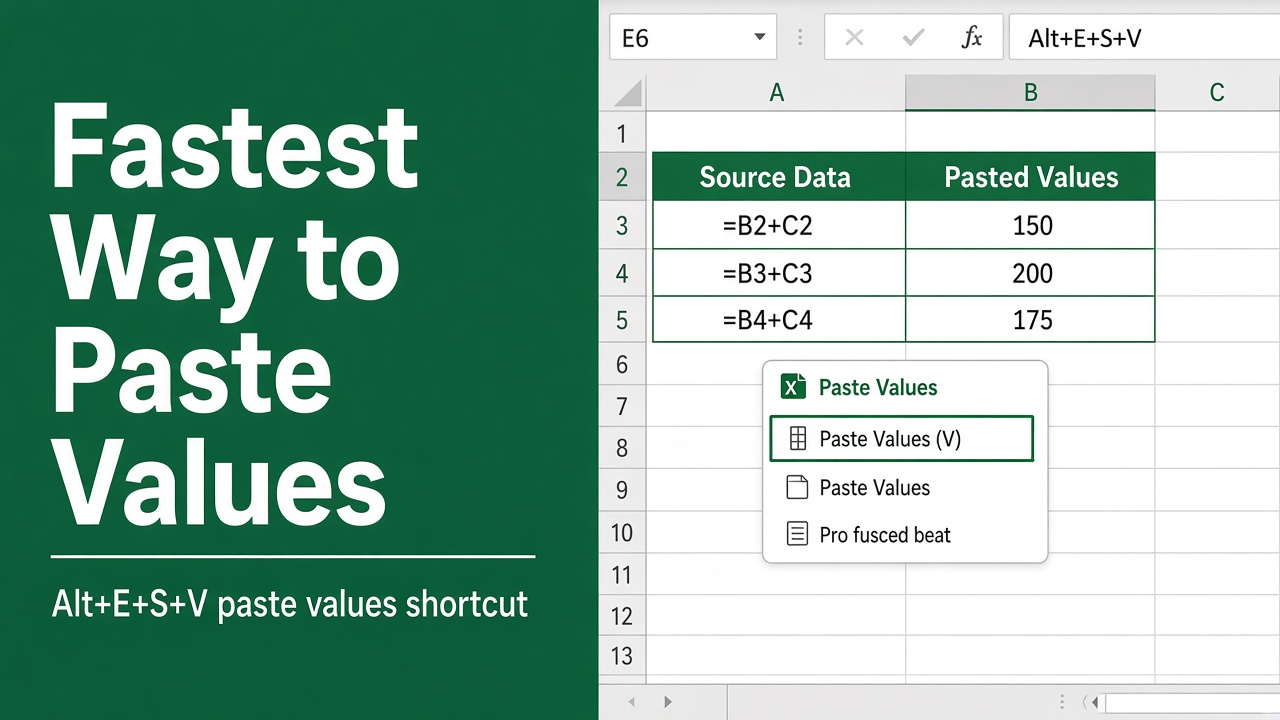
Pasting values turns formulas into their results and leaves the destination’s formatting alone, so it’s one of the most-used actions in Excel. Here are the fastest ways to do it with the keyboard, plus the other Paste Special options worth knowing.
- Microsoft 365 for Windows: copy, then press Ctrl + Shift + V to paste values only.
- Any version on Windows: copy, then press Ctrl + Alt + V, V, Enter (Paste Special > Values). Alt, H, V, V also works.
- Mac: copy, press Control + Command + V, choose Values, and click OK.
The Need for a Quick Paste Values Shortcut
Copying and pasting values is a common task in Excel, particularly when you need to remove formulas and formatting. When you paste values, you can extract the numbers or text from cells without altering any existing formatting. This is particularly useful for scenario analysis or when pasting into a range with pre-existing formatting. The introduction of a new shortcut enables you to paste values effortlessly, resulting in time savings and increased productivity. In addition to the shortcut, there are various other methods and shortcuts available for pasting values, offering flexibility and catering to different user preferences.
Advantages of Quick Paste Values Shortcut
- Efficient way to remove formulas and formatting when copying and pasting in Excel.
- Saves time by extracting only the necessary values without altering existing formatting.
- Enhances productivity by streamlining the copying and pasting process.
- Useful for scenario analysis and pasting into ranges with pre-defined formatting.
- Provides flexibility with multiple methods and shortcuts for pasting values.
Comparison to Traditional Pasting Methods
In traditional methods of pasting in Excel, users often encounter challenges when attempting to remove formulas and formatting. This results in the need for additional steps to extract values and adjust formatting manually. With the new shortcut, these time-consuming tasks are simplified, allowing for a seamless and efficient workflow. The quick paste values shortcut eliminates the need for repetitive steps and provides a straightforward solution for users.
How to Use the Paste Values Shortcut
To take advantage of the convenient paste values shortcut in Excel, follow these simple steps:
- Copy the content you wish to paste.
- Press Ctrl+Shift+V on your keyboard.
Excel pastes only the values: formulas become their results, and the destination cells keep their own formatting. When you copy from a web page or another app, the same shortcut pastes plain text that picks up the destination formatting.
Ctrl + Shift + V is available in Excel for Microsoft 365 on Windows. In older versions, such as Excel 2019 or 2021, use Ctrl + Alt + V, then V and Enter, which opens Paste Special with Values selected. By incorporating this shortcut into your Excel workflow, you’ll be able to quickly and efficiently paste values, saving time and effort in your data handling tasks.
Remember, if you’re looking to remove formulas and retain only the values, the paste values shortcut is your go-to solution in Excel.
Other Paste Special Options in Excel
In addition to the shortcut for paste values, Excel offers a range of options through the Paste Special feature. With Paste Special, you have the flexibility to choose specific elements of the copied cells to paste, including formulas, comments, formats, column width, and more. This powerful feature allows you to customize the pasted content based on your needs and preferences. Let’s explore some of the key formatting options available:
1. Paste with Formulas
With the Paste Special option, you can choose to paste only the formulas from the source cells to the destination. This is useful when you want to keep the underlying mathematical calculations but exclude any formatting or comments associated with the original cells.
2. Paste with Formats
If you want to apply the formatting of the copied cells to the destination cells without pasting the values or formulas, the ‘Paste with Formats’ option is your go-to choice. This is especially handy when you want to maintain a consistent visual appearance across different parts of your spreadsheet.
3. Paste with Column Widths
When you have a specific column width set for a range of cells, you can easily replicate it to another range using the ‘Paste with Column Widths’ option. This ensures consistent column widths throughout your worksheet, making it easier to organize and present your data.
4. Paste with Comments
If your source cells contain comments that provide additional context or explanations, you can selectively paste those comments to the destination cells using the ‘Paste with Comments’ option. This enables you to maintain the clarity and annotations associated with your data.
5. Paste with Operations
Excel’s Paste Special feature also allows you to perform arithmetic operations on the copied data while pasting. You can choose from options like addition, subtraction, multiplication, and division, saving you the effort of manually manipulating the data in separate steps.
By leveraging the various formatting options in Excel’s Paste Special, you can enhance your data handling and make your worksheets more structured and visually appealing. Experiment with these options to find the best fit for your specific data manipulation tasks.
| Formatting Option | Description |
|---|---|
| Paste with Formulas | Pastes only the formulas from the copied cells |
| Paste with Formats | Applies the formatting of the copied cells to the destination cells |
| Paste with Column Widths | Replicates the column widths of the copied cells to the destination cells |
| Paste with Comments | Pastes the comments associated with the copied cells to the destination cells |
| Paste with Operations | Performs arithmetic operations on the copied data while pasting |
Excel’s Paste Special feature provides a wide range of options to enhance your data manipulation and formatting capabilities. By understanding and utilizing these options effectively, you can optimize your workflow and achieve greater productivity in Excel.
Tips and Tricks for Using Paste Special
To optimize your workflow in Excel and maximize productivity, it’s essential to master the art of using Paste Special effectively. By leveraging various shortcuts and tricks, you can streamline your data manipulation and formatting tasks, saving time and effort. Here are some valuable tips to help you make the most out of Excel’s Paste Special feature:
1. Accessing Paste Special: There are multiple ways to access the Paste Special dialog in Excel. You can navigate through the ribbon menu, right-click on the selected cells, or use convenient keyboard shortcuts. Try pressing Ctrl+Alt+V or Alt+E, then S to quickly open the Paste Special dialog.
2. Shortcut to Select Specific Options: Within the Paste Special dialog, each paste option has its own shortcut key. Familiarize yourself with these shortcuts to save even more time and choose the desired options effortlessly. For instance, you can use Alt+V to select Values, Alt+T to paste Formats, Alt+F to paste Formulas, and so on.
3. Exploring Different Paste Options: Excel’s Paste Special offers a wide range of options beyond simple values, formats, and formulas. You can delve deeper by exploring additional paste options like column width, comments, validation, and more. By experimenting with these options, you can enhance your data handling and formatting in unique ways.
By utilizing these tips and tricks, you can become a master of Excel’s Paste Special feature, optimizing your workflow, and achieving efficient data manipulation and formatting in no time. Elevate your productivity by incorporating these shortcuts into your daily Excel tasks, and unlock the full potential of this powerful tool.
FAQ
What is the new keyboard shortcut introduced in Excel?
The shortcut is Ctrl + Shift + V in Microsoft 365 for Windows. It pastes values only, so formulas become their results and the destination keeps its formatting.
Who can use the paste values shortcut?
Ctrl + Shift + V works in Excel for Microsoft 365 on Windows. In every other version, use Ctrl + Alt + V, then V and Enter; on a Mac, use Control + Command + V and choose Values.
When should I use the paste values shortcut?
The paste values shortcut in Excel is handy when you want to remove formulas and formatting, extract numbers or text from cells, or paste into a range with existing formatting.
How do I use the paste values shortcut in Excel?
To use the paste values shortcut, first copy the content you want to paste. Then, press Ctrl+Shift+V on your keyboard. Excel pastes the values only, without formulas or source formatting.
What are the other options available for pasting values in Excel?
In addition to the paste values shortcut, Excel offers a range of options through the Paste Special feature. You can choose specific elements of the copied cells to paste, such as formulas, comments, formats, and more. You can also perform mathematical operations with the copied data.
How can I access the Paste Special feature in Excel?
You can access the Paste Special feature in Excel through the ribbon, right-click menu, or by using a keyboard shortcut (Ctrl+Alt+V or Alt+E, then S).
Are there any shortcuts for specific paste options in Paste Special?
Yes, each paste option in the Paste Special dialog has its own shortcut key, making it faster to select specific options. By familiarizing yourself with these shortcuts, you can efficiently use Paste Special in Excel.