
Excel library
How to Fix VLOOKUP Showing Formula Instead of Result in Excel?
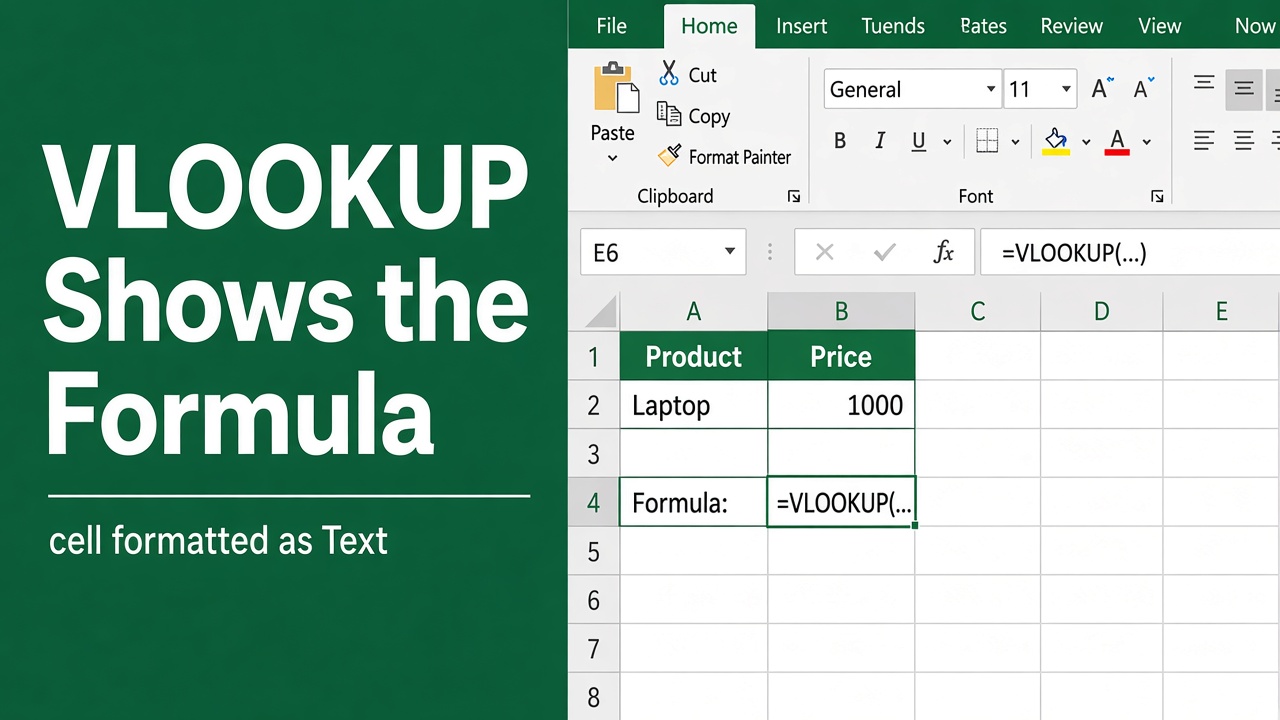
Are you trying to use the VLOOKUP function in Microsoft Excel, but instead of getting the result you expect, you see the VLOOKUP formula itself in the cell? This is a common issue that can be frustrating, but don’t worry – there are a few simple solutions to fix VLOOKUP showing formula instead of result. In this article, we’ll walk through the causes of this problem and provide step-by-step solutions to get your VLOOKUP formulas working correctly.
- Press Ctrl + ` (the key left of 1). If every formula on the sheet shows as text, Show Formulas was on and this turns it off.
- If only some cells show the formula, they are formatted as Text. Select them, set Home > Number Format to General, then press F2 and Enter in each cell.
- For a whole column, select it and use Data > Text to Columns > Finish after changing the format to General; every formula recalculates at once.
Also check that nothing comes before the =. A space or an apostrophe in front makes Excel treat the formula as text.
Reasons VLOOKUP Shows Formula Instead of Result
There are a few potential causes for VLOOKUP displaying the formula text instead of calculating a result:
1. The Cell Is Formatted as Text
This is the most common reason. If a cell’s number format is Text when you type the formula, Excel stores exactly what you typed, “=VLOOKUP(…)”, as text. This often happens in columns that were formatted as Text on purpose, or that came from an import or a copied template. Changing the format to General afterwards is not enough on its own; the formula has to be entered again (F2, then Enter).
2. Show Formulas Is Turned On
If every formula on the sheet shows as text, Show Formulas is on. It’s easy to switch on by accident with Ctrl + `. Press the same shortcut, or click Formulas > Show Formulas, to turn it off.
3. A Space or Apostrophe Before the Equals Sign
A formula only calculates if = is the very first character. A leading space, often pasted in from an email or web page, or an apostrophe ('=VLOOKUP(...)) turns it into text. Click the cell, press F2, and delete anything in front of the equals sign.
4. Incorrect Reference Syntax
A formula with wrong syntax, such as a missing comma, usually makes Excel show a “There’s a problem with this formula” message instead of accepting it. A common workaround is to type an apostrophe in front so you can save it and fix it later, which leaves the formula as text.
5. Numbers Stored as Text
Sometimes the issue isn’t with the VLOOKUP formula itself, but with the source data being looked up. If the value you are looking up or the values in your lookup table are numbers that were entered as text (e.g. by preceding the number with an apostrophe), VLOOKUP won’t be able to match them properly. Numbers stored as text may look fine but are treated differently by formulas.
6. Formula Incompatible with Other Cell Contents
Finally, mixing formulas and text together in a single cell can cause strange results. If you combine a working VLOOKUP formula with other text (besides a simple label), Excel may get confused and just display the whole mishmash as text.
How to Fix VLOOKUP Showing Formula Instead of Result
Now that we know the common causes, let’s look at how to resolve each issue and get VLOOKUP working properly:
Solution 1: Re-Enter the Formula Correctly
If your VLOOKUP is showing as text, first make sure the cell isn’t formatted as Text (Home > Number Format > General) and that Show Formulas is off (Ctrl + `). Then enter the formula again so Excel calculates it.
Here’s how:
- Click on the cell containing the VLOOKUP text
- Press F2 to enter edit mode
- Delete anything before the
=, such as a space or an apostrophe - Press Enter to calculate the formula
Solution 2: Fix Formula Syntax and References
Carefully proofread your VLOOKUP formula for typos, incorrect punctuation, and invalid cell references. Make sure the lookup_value matches the lookup column, the table_array covers the correct data range, and col_index_num points to the right column.
Here are a few things to check:
- Lookup_value is a single cell reference or value, not a range
- Table_array is an absolute reference (with $ before column and row) and includes the lookup column
- Col_index_num is a valid integer
- Parentheses are placed correctly and match
- Function is spelled “VLOOKUP” correctly
For example, this VLOOKUP contains an error:
=VLOOKUP(A2, B2:D10 3, FALSE)The comma is missing between the table_array and col_index_num. The correct formula would be:
You can also fix a #value error in the VLOOKUP function.
=VLOOKUP(A2, B2:D10, 3, FALSE)Solution 3: Convert Numbers Stored as Text to Real Numbers
If your VLOOKUP can’t match because the lookup_value or table_array contains numbers stored as text, you need to convert those text values to actual numbers. There are a few ways to do this:
- Highlight the cells, click in the formula bar, and press Enter
- Use Paste Special > Values to overwrite text with numeric values
- Use a formula like =VALUE(A1) to convert text to number
For example, if you have numbers stored as text in A1:A10, you can convert them with an array formula. Select A1:A10, type this formula, and press Ctrl+Shift+Enter to array enter it:
=VALUE(A1:A10)The VALUE function will convert any text that looks like a number into a real number. #VALUE errors mean the text couldn’t be converted.
Solution 4: Separate Formulas from Other Text
If you want to label or annotate a cell that contains a VLOOKUP, put the label in a separate cell rather than combining it with the formula. Mixing formulas and text in one cell rarely works well.
For instance, instead of this:
Product XYZ Quantity: =VLOOKUP(A1, InventoryTable,2,FALSE)
Split it into two cells like:
Product XYZ Quantity:
=VLOOKUP(A1, InventoryTable,2,FALSE)
Comparing VLOOKUP to Other Lookup Methods
While VLOOKUP is popular, it’s not always the best function for looking up data in Excel. Some other useful functions to consider are:
| Function | Description |
|---|---|
| INDEX/MATCH | More flexible than VLOOKUP, can look left and use non-numeric lookup columns |
| XLOOKUP | New function similar to VLOOKUP but more powerful, supports wildcards and reverse lookups |
| HLOOKUP | Horizontal version of VLOOKUP, for data in rows instead of columns |
Each of these functions works a bit differently than VLOOKUP, so if you run into frequent issues with VLOOKUP it’s worth learning one of these alternatives. However, they can also display formulas instead of results if entered incorrectly.
Troubleshooting Other VLOOKUP Issues
Besides showing formulas instead of results, there are a few other common problems you may encounter with VLOOKUP:
#N/A Errors
A #N/A error means VLOOKUP couldn’t find the lookup_value in the first column of the table_array. This usually happens if the lookup_value is misspelled, has extra spaces, or is a different data type (e.g. number vs. text) than the values in the lookup column.
#REF! Errors
A #REF! error occurs if the col_index_num exceeds the number of columns in the table_array range. Double-check that your table_array includes enough columns for the col_index_num you specified.
Incorrect Results
If VLOOKUP returns a value but it’s not the result you expected, the most likely cause is using approximate match (range_lookup = TRUE or omitted) instead of exact match (range_lookup = FALSE). Approximate match will return the next smallest value if no exact match is found, which can cause confusion. Use FALSE if you only want exact matches.
Summary
VLOOKUP is an essential tool for Excel users to master, but it can sometimes misbehave and show formulas instead of calculated results. The key issues to watch out for are:
- Accidentally entering formulas as text
- Syntax errors and incorrect cell references
- Numbers stored as text instead of actual numeric values
- Incompatibility between formulas and other text in a cell
By following the troubleshooting steps in this guide, you should be able to resolve cases of VLOOKUP showing formula instead of result. If you still have trouble, consider an alternative lookup function like INDEX/MATCH, XLOOKUP or HLOOKUP. With practice, you’ll be able to use the VLOOKUP and other lookup functions efficiently to analyze your data in Excel.