
Excel library
The Shortcut Method to Capitalize Letters in Excel
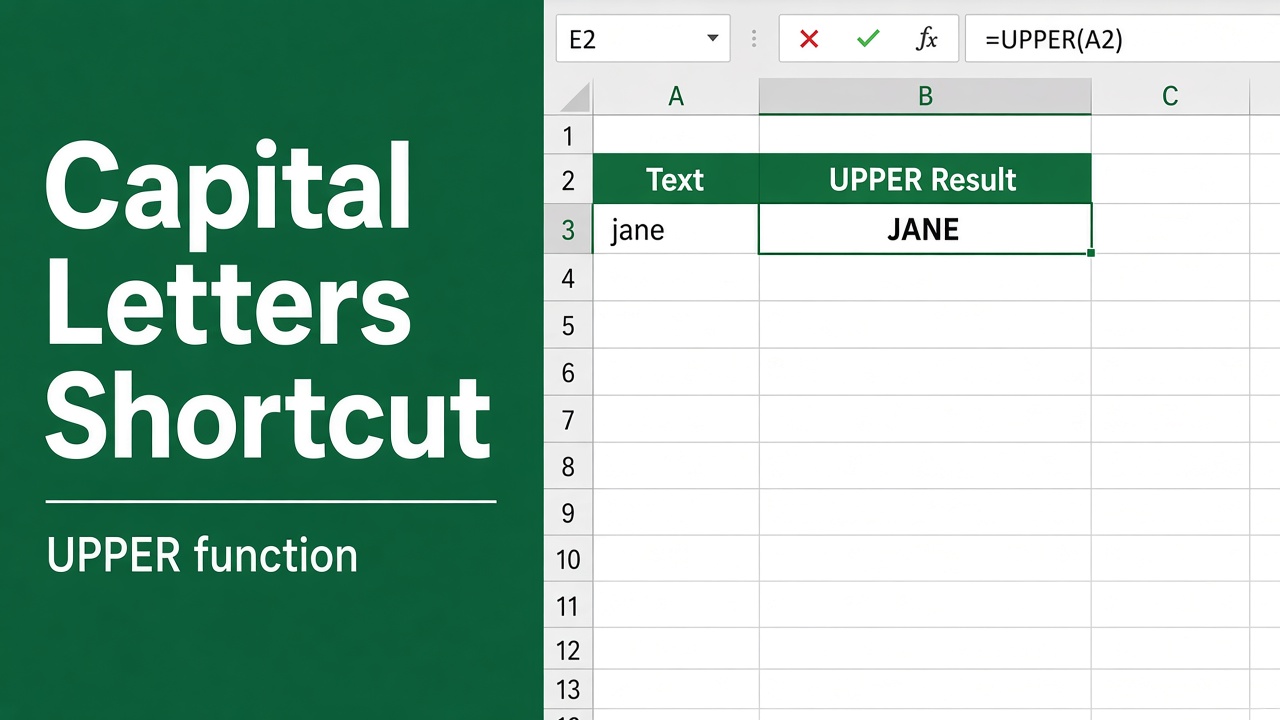
Ever found yourself staring at a sea of lowercase letters in Excel, wishing for a magic key to turn them all uppercase (or vice versa)? Well, fret no more! While Excel doesn’t have a built-in shortcut key for capitalization, there are several efficient methods to achieve this using keyboard shortcuts and formulas. In this comprehensive guide, we will learn how to capitalize letters in excel easily and quickly.
Excel has no built-in shortcut to change case (Word’s Shift + F3 doesn’t work in Excel). The fastest ways:
- Flash Fill: type the first value in capitals in the next column, e.g. JOHN SMITH, then press Ctrl + E to fill the rest.
- Formula:
=UPPER(A2)for capitals,=PROPER(A2)for Title Case,=LOWER(A2)for lowercase.
Then copy the results and use Paste Special > Values over the originals if you want to replace them.
Using Keyboard Shortcuts to Capitalize Letters
While the mouse is a handy tool for navigating Excel, keyboard shortcuts offer unparalleled speed and efficiency. Let’s explore two effective methods for capitalizing text using shortcuts:
Method 1: Using the Caps Lock Key
- Select the cells containing the text you want to capitalize. You can achieve this by dragging your mouse over the desired cells or using the arrow keys.
- Engage the Caps Lock key on your keyboard. This key ensures that all subsequent characters you type will be uppercase.
- Type the desired text. If the cells already contain text, simply start typing to overwrite it in uppercase.
Important Note: Be cautious while using Caps Lock, as it affects all future typing until you deactivate it.
Method 2: Using the SHIFT Key
- Select the cells you want to modify.
- Hold down the SHIFT key while you type the letters you want to capitalize. This technique capitalizes only the letters you type while holding SHIFT.
Pro Tip: This method is particularly useful for capitalizing the first letter of each word (Proper Case). Simply hold SHIFT and type the first letter of each word, followed by lowercase letters for the rest.
Using Formula to Capitalize Letters: UPPER, LOWER, and PROPER
Excel provides a trio of powerful functions that grant you granular control over text case: UPPER, LOWER, and PROPER. Let’s delve into their functionalities:
UPPER Function: Transforming Text to All Caps
The UPPER function takes a text string as input and returns a new string with all characters converted to uppercase. Here’s how to use it:
- Select an empty cell where you want the capitalized text to appear.
- Type the formula
=UPPER(A1), replacing “A1” with the cell reference containing the text you want to capitalize. - Press Enter. The UPPER function will convert the text in cell A1 to uppercase and display it in the selected cell.
Example: If cell A1 contains “hello world”, the formula =UPPER(A1) will return “HELLO WORLD” in the selected cell.
LOWER Function: Demoting Text to Lowercase
The LOWER function mirrors the UPPER function, but with the opposite effect. It converts all characters in a text string to lowercase. Here’s the syntax:
- Select an empty cell.
- Type the formula
=LOWER(A1), substituting “A1” with the cell reference containing the text you want tolowercased. - Press Enter. The formula will display the lowercase version of the text from cell A1 in the selected cell.
Example: If cell A1 contains “EXCEL IS AWESOME”, the formula =LOWER(A1) will return “excel is awesome” in the selected cell.
PROPER Function: Embracing Proper Case
The PROPER function capitalizes the first letter of each word in a text string, while converting the remaining letters to lowercase. Here’s how to use it:
- Select an empty cell.
- Type the formula
=PROPER(A1), replacing “A1” with the cell reference containing the text you want to convert to Proper Case. - Press Enter. The formula will display the text from cell A1 with proper capitalization in the selected cell.
Example: If cell A1 contains “this is a sentence”, the formula =PROPER(A1) will return “This Is A Sentence” in the selected cell.
Choosing the Right Method: A Quick Reference
The optimal method for capitalizing text in Excel depends on your specific needs. Here’s a handy table to guide you:
| Scenario | Recommended Method |
|---|---|
| Capitalize all characters in existing text | Caps Lock key or UPPER function |
| Capitalize only specific characters while typing | SHIFT key |
| Capitalize the first letter of each word | SHIFT key or PROPER function |
Advanced Techniques to Capitalize Text in Excel
For power users seeking even more control over text case, here are two additional techniques:
Flash Fill: Change Case Without a Formula
Flash Fill copies a pattern you type once. With names in column A:
- In B2, type the first entry the way you want it, for example JOHN SMITH.
- Select B3 and press Ctrl + E. Excel fills the rest of the column in capitals.
The results are plain text, not formulas, so you can delete column A afterwards. Conditional formatting can’t do this: it changes colors and fonts, but it has no option for upper or lower case.
Macros for Automated Capitalization
To convert the selected cells in place, with no helper column, use this macro:
- Press Alt + F11, click Insert > Module, and paste the code below.
- Back in Excel, press Alt + F8, select MakeUpperCase, click Options, and type a letter (for example U with Shift held) to give it the shortcut Ctrl + Shift + U.
- Save the file as .xlsm. Select cells and press your shortcut whenever you need capitals.
Sub MakeUpperCase()
    Dim cell As Range
    For Each cell In Selection
        If Not cell.HasFormula And VarType(cell.Value) = vbString Then
            cell.Value = UCase(cell.Value)
        End If
    Next cell
End Sub
It skips formulas and numbers, and it can’t be undone with Ctrl + Z, so try it on a copy first. Use LCase for lowercase or Application.Proper for Proper Case.
Final Thoughts
By mastering the keyboard shortcuts, formulas, and advanced techniques presented in this guide, you’ll be well-equipped to conquer text case manipulation in Excel. Remember to choose the method that best suits your needs, and leverage the power of conditional formatting and macros for efficiency. With a bit of practice, you’ll be capitalizing text like a pro, streamlining your workflow and saving valuable time in Excel.
FAQs
Is there a shortcut to capitalize letters in Excel?
No, there is no built-in shortcut in Excel to capitalize letters. However, you can use the UPPER, LOWER, or PROPER functions to change the case of text in cells.
How can I change the case of text in Excel without using a shortcut?
To change the case of text in Excel, you can use the UPPER, LOWER, or PROPER functions. For example, to capitalize all letters in a cell, use the formula =UPPER(A1), where A1 is the cell containing the text you want to modify.
Can I apply these functions to multiple cells at once?
Yes, you can apply the UPPER, LOWER, or PROPER functions to a range of cells by selecting the cells where you want the results to appear, entering the formula with the appropriate cell reference, and then pressing Ctrl + Enter to apply the formula to all selected cells.
Is there a way to change the case of text without using functions?
You can also change the case of text in Excel by using the Flash Fill feature. Type the first value in the desired case in the next column, then press Ctrl + E (or go to Data > Flash Fill). Excel will automatically detect the pattern and fill the remaining cells with the appropriate case.
Can I change the case of specific words or phrases within a cell using these methods?
No, the UPPER, LOWER, and PROPER functions, as well as the Flash Fill feature, apply to the entire contents of a cell. To change the case of specific words or phrases within a cell, you’ll need to edit the cell manually or use a custom formula with string functions like LEFT, RIGHT, and MID.