
Excel library
How to Create an Excel Formula Loop Without VBA: Easy Guide
Looping in Excel without using VBA (Visual Basic for Applications) can seem tricky, especially when you’re trying to repeat a formula until a condition is met. Excel doesn’t support traditional loops like programming languages, but with the right combination of functions, you can mimic loop-like behavior using formulas.
In Microsoft 365, SCAN runs a calculation step by step through a list, like a loop:
=MATCH(TRUE, SCAN(0, A1:A10, LAMBDA(total, x, total + x)) > 100, 0)This builds a running total of A1:A10 and returns the position where it first goes over 100. Wrap the running total in FILTER or TAKE to return the values up to that point. SCAN, LAMBDA and REDUCE need Microsoft 365 or Excel 2024; in older versions, use a helper column with a running total.
In this guide, we will show you how to simulate a loop in Excel without writing VBA code. We’ll use built-in Excel formulas like SEQUENCE, SCAN, LAMBDA, IF, and INDEX to build logic that behaves like a loop.
Excel Functions That Mimic Loop Behavior
Excel’s newer dynamic array functions and legacy array formulas can help you repeat operations without VBA.
Key Functions to Know
| Function | Purpose |
|---|---|
| SEQUENCE | Generates a series of numbers for looping |
| IF | Adds conditional logic |
| LAMBDA | Creates custom logic as reusable functions |
| SCAN | Accumulates values across arrays |
| REDUCE | Applies operations over a list |
| INDEX | Retrieves data based on position |
| LET | Assigns names to calculations |
These formulas simulate logic like “do this until a condition is met” by processing arrays step by step.
Example Scenario: Repeating a Formula Until a Condition Is Met
Let’s say you want to keep adding numbers in a column until the total exceeds 100. We’ll use formulas to do this without loops or macros.
Step 1: Sample Data
Assume your values are in cells A1:A10:
A
1   10
2   15
3   20
4   18
5   12
6   25
7   9
8   11
9   14
10  8
Step 2: Cumulative Sum Using SCAN
=SCAN(0, A1:A10, LAMBDA(a, b, a + b))This formula adds numbers one by one from the range A1:A10, just like a loop.
Output in a column:
| A | B (Cumulative Sum) |
|---|---|
| 10 | 10 |
| 15 | 25 |
| 20 | 45 |
| 18 | 63 |
| 12 | 75 |
| 25 | 100 |
| 9 | 109 |
| 11 | 120 |
| 14 | 134 |
| 8 | 142 |
Step 3: Find First Value That Crosses 100
Now, you want to stop the loop when the total reaches over 100. Use:
=MATCH(TRUE, SCAN(0, A1:A10, LAMBDA(a,b,a+b))>100, 0)This returns the position where the cumulative total first exceeds 100. The output here would be 7, which means the sum exceeds 100 at the 7th value.
Step 4: Return All Values Until the Condition Is Met
Use INDEX and SEQUENCE:
=INDEX(A1:A10, SEQUENCE(MATCH(TRUE, SCAN(0, A1:A10, LAMBDA(a,b,a+b))>100, 0)))This formula mimics a loop until a condition: it returns the numbers from the list until the cumulative sum > 100.
Creating a Custom Loop-Like Function Using LAMBDA
You can wrap the logic into a named formula using LAMBDA.
Step-by-Step Custom Function
- Go to Formulas > Name Manager > New
- Name it:
LoopUntilSumExceeds - Formula:
=LAMBDA(range,
   LET(
     cumulative, SCAN(0, range, LAMBDA(a,b,a+b)),
     position, MATCH(TRUE, cumulative > 100, 0),
     INDEX(range, SEQUENCE(position))
   )
)- Save and close
Using the Custom Function
=LoopUntilSumExceeds(A1:A10)This behaves like a loop: it keeps picking values until their total exceeds 100.
Looping with Iterative Calculation (Without VBA)
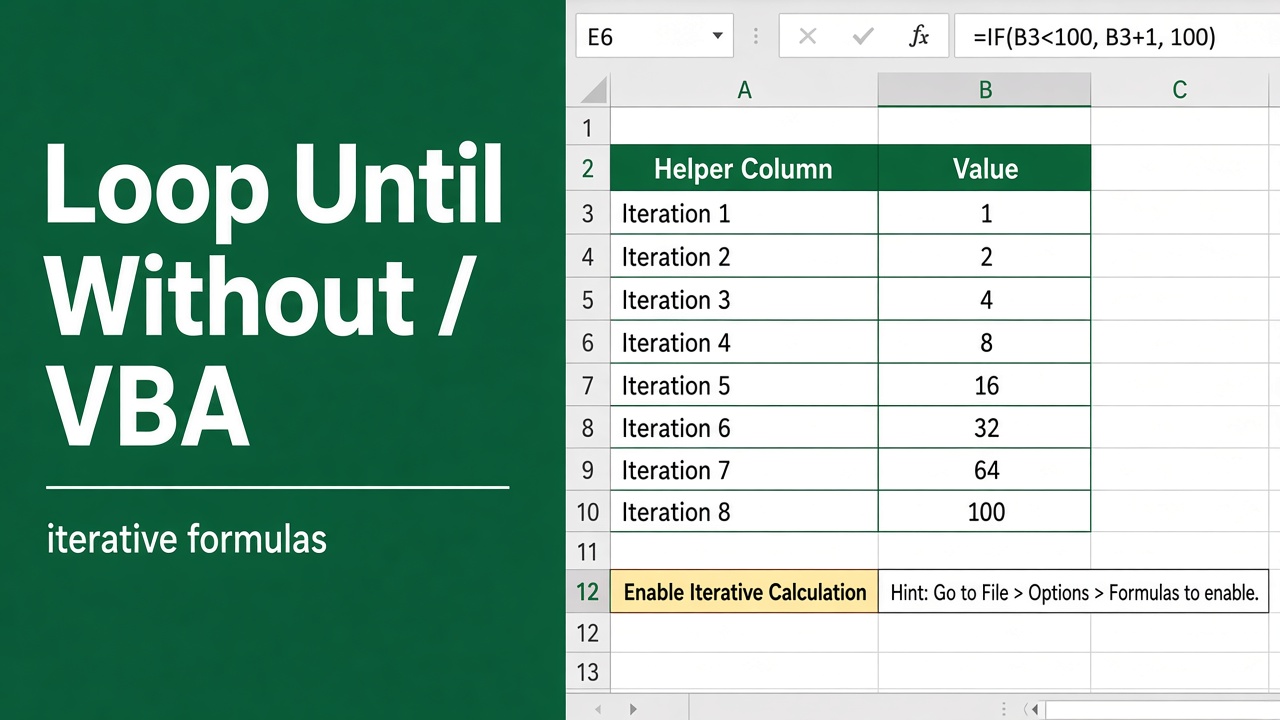
Another way to create loop behavior is using iterative calculations in Excel’s options. This approach works when you want Excel to recalculate a cell repeatedly based on its previous value.
Enabling Iterative Calculation
- Go to File > Options > Formulas
- Check Enable iterative calculation
- Set Maximum Iterations and Maximum Change
Example: A True Iterative Loop
Iterative calculation only matters when a formula refers to itself (a circular reference). With it switched on and Maximum Iterations set to 100, this formula in B1 multiplies its own previous value by 1.05 on each pass until it reaches 2000:
=IF(B1=0, 1000, IF(B1<2000, B1*1.05, B1))Because the result depends on how many passes Excel makes, iterative formulas are hard to audit. For most “repeat until” questions a direct formula is safer. For example, the number of years for 1000 to grow past 2000 at 5% is =ROUNDUP(NPER(5%, 0, -1000, 2000), 0), which returns 15, and =SCAN(1000, SEQUENCE(20), LAMBDA(bal, n, bal*1.05)) lists the balance year by year so you can see where it crosses 2000.
A column of formulas that each refer to the row above, such as =IF(B1<2000, B1*1.05, B1) copied down, also works, but that is an ordinary helper column; it doesn’t need iterative calculation.
Alternative: Using Helper Columns to Simulate a Loop
If you can’t use dynamic arrays, use helper columns.
Setup
| A (Step) | B (Value) | C (Cumulative) |
|---|---|---|
| 1 | 10 | =B1 |
| 2 | 15 | =C1+B2 |
| 3 | 20 | =C2+B3 |
| … | … | … |
In column D, mark where to stop:
=IF(C1>100, "Stop", "")Use a filter or conditional formatting to highlight values until the stop condition is met.
Using FILTER to Return Loop Results
Combine FILTER and logical arrays for loop-like results.
Formula
=FILTER(A1:A10, SCAN(0, A1:A10, LAMBDA(a,b,a+b))<=100)This shows all values until the cumulative total hits or exceeds 100, without writing VBA.
Advantages of Formula-Based Looping
- No need for macros
- Compatible with Excel Online and mobile
- Works in dynamic array environments
- Real-time updates with input changes
Limitations of Excel Formula Loops
| Limitation | Details |
|---|---|
| Performance | Large datasets may slow down |
| Complexity | Nested formulas can be hard to read |
| No true recursion | Excel lacks true recursive support |
| Limited debugging | Hard to troubleshoot formula logic |
Best Practices
- Use LET and LAMBDA to simplify formulas
- Avoid nesting more than 3-4 functions deeply
- Prefer SCAN and FILTER for iterative needs
- Keep helper columns for readability when needed
- Use named formulas for reusability
Summary
While Excel doesn’t support traditional loops without VBA, you can simulate loop until logic using array formulas and dynamic functions. By combining SCAN, SEQUENCE, IF, and MATCH, you can create formula-driven workflows that behave like loops.
This method is especially useful for non-programmers who need automated, dynamic calculations without writing code. With LAMBDA and LET, you can even build custom loop-like logic and keep your formulas clean and efficient.
FAQs
Can you create a loop in Excel without using VBA?
Yes, you can simulate loop-like behavior in Excel using functions like SCAN, SEQUENCE, LAMBDA, IF, and INDEX—no VBA or macros required.
What is the SCAN function used for in Excel?
The SCAN function in Excel accumulates values across an array, allowing you to build iterative logic such as cumulative sums.
How do I stop a formula loop when a condition is met?
You can use the MATCH function with a condition inside SCAN to determine when a loop should stop based on cumulative results.
What Excel version supports SCAN and LAMBDA?
Functions like SCAN and LAMBDA are available in Excel 365 and Excel for the web. They are not available in Excel 2019 or earlier versions.
Can I return a dynamic range of values using Excel formulas?
Yes, using SEQUENCE with INDEX and MATCH, you can return values dynamically based on logical conditions or thresholds.
Is it possible to create custom loop functions in Excel?
Yes, you can use LAMBDA and LET to create custom reusable logic that mimics loop functionality in a clean and efficient way.
Ms. Desai,
I have been trying to use your looping formula:
1. In cell A2, enter the following formula and press Ctrl+Shift+Enter to make it an array formula:
= {1,2,3,4,5,6,7,8,9,10}
2. In cell A1 above, enter the looping formula:
=IF(A2=10,10,INDEX(A$2:A$2,ROWS(INDIRECT(“”1:”&ROW()))))
3. Fill the formula in A1 down until you see the sequence fully generated in column A.
I have tried your looping formula many times, but consistently get a #REF! error. What am I doing wrong? Can you help me? I believe that I am entering it correctly by using Microsoft Office 365 with EXCEL 365. Is it a problem with arrays/dynamic arrays? I am not an expert EXCEL user, but I do use EXCEL continuously for many spreadsheet-type projects…successfully. I need a looping capability for a current project and discovered your looping formula in my Internet search…primarily because it does not require VBA and looked doable. (https://excelsamurai.com/excel-formula-loop-until-without-vba/)
PLEASE HELP IF YOU CAN!
Hi Jim,
Thanks for reaching out and for trying out the looping formula technique!
You’re absolutely right to be confused. The original method using =IF(A2=10,10,INDEX(A$2:A$2,ROWS(INDIRECT(“1:”&ROW())))) is not supported on Excel 365 and can result in a #REF! error, which supports dynamic arrays natively.
I’ve since updated the blog post with a more modern, reliable approach using functions like SEQUENCE, SCAN, LAMBDA, and INDEX, which work perfectly without VBA.
For example, instead of creating a loop manually, you can now use this kind of formula to return values until a condition is met:
=INDEX(A1:A10, SEQUENCE(MATCH(TRUE, SCAN(0, A1:A10, LAMBDA(a,b,a+b))>100, 0)))
This will return values from A1:A10 until the cumulative sum exceeds 100.
Let me know if you’d like help adapting this technique to your specific project. I’d be happy to guide you!