
Excel library
How to Show “-” Instead of 0 in Excel for Cleaner Data Presentation
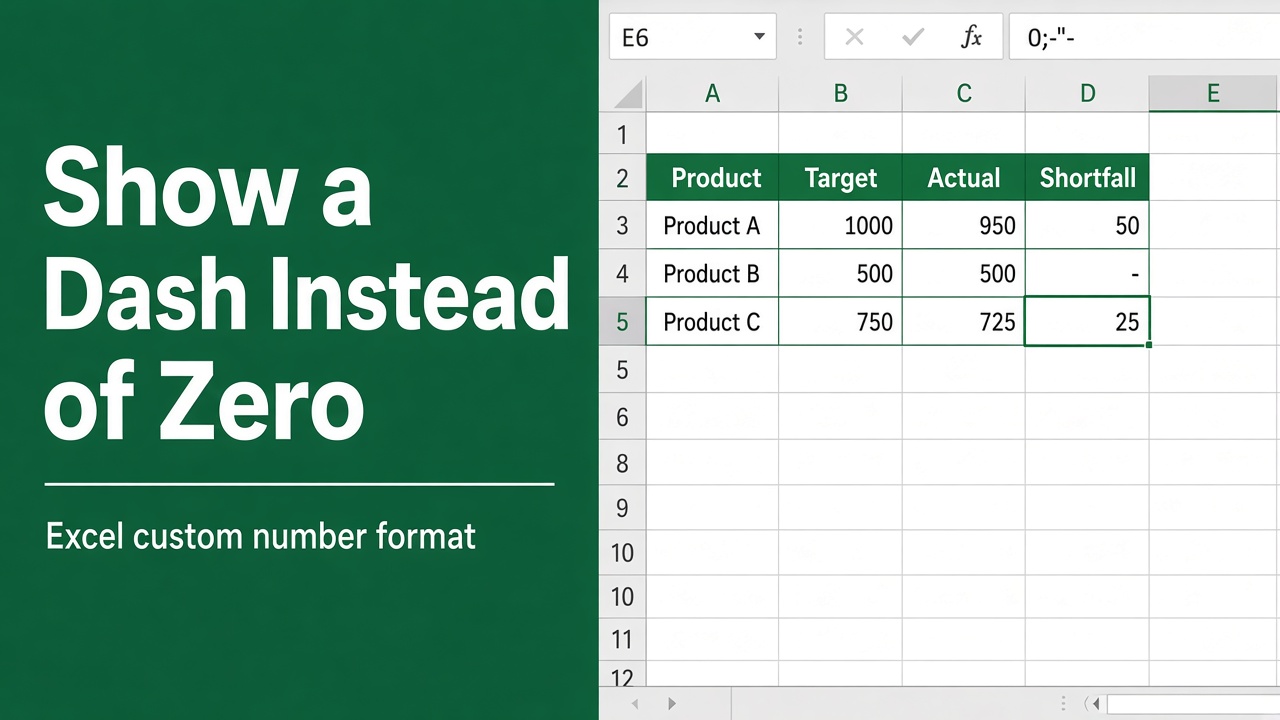
Did you know that cluttered spreadsheets with excessive zeros can make it harder to read and understand? In Excel, displaying the value 0 as “-” can significantly enhance the clarity and professionalism of your data presentation. By replacing 0 with “-“, you can make your spreadsheets cleaner and more visually appealing.
Select the cells, press Ctrl + 1, choose Custom, and type:
#,##0;-#,##0;"-"The third part of the format (after the second semicolon) controls zeros, so 0 now shows as a dash while the cell still holds 0 and still adds up. The built-in Accounting format also shows zeros as a dash.
Key Takeaways:
- Displaying “-” instead of 0 in Excel improves the visual presentation of your spreadsheets.
- Custom formatting, IF formulas, and conditional formatting are effective methods to show “-” instead of 0.
- Changing the chart display and hiding zero values can further enhance the visibility of your data.
Displaying “-” instead of 0 using Custom Formatting
-
Select the cells where you want to replace zeros with dashes.
-
Right-click and choose Format Cells.
-
In the Format Cells dialog box, switch to the Number tab.
-
Under Category, choose Custom.
-
In the Type box, enter the following code:
#,##0;-#,##0;- -
Click OK.
Explanation of the code:
#,##0: This section defines the format for positive values. You can adjust the comma placement and number of decimal places as needed.;: This separates the formatting for different conditions.-#,##0: This defines the format for negative values. The minus sign ensures negative numbers appear with a minus symbol.;: Another separator.-: This specifies that you want to display a hyphen for zero values.
Using Conditional Formatting to Show “-” Instead of 0
- Select the cells where you want to replace zeros with dashes.
- Go to Home > Conditional Formatting > New Rule and choose Format only cells that contain.
- Set the rule to Cell Value > equal to > 0.
- Click Format, open the Number tab, choose Custom, and type
"-"in the Type box. - Click OK twice. Zeros now display as a dash while the cell still holds 0.
What to Keep in Mind While Choosing the Right Method
- Custom formatting is a permanent change applied directly to the cell format. This method is ideal when you want zeros consistently displayed as dashes throughout your sheet.
- Conditional formatting allows you to apply the dash symbol only to specific cells that contain zero. This can be useful if you want zeros to appear normally in some cases and as dashes in others.
Using IF Formula to Conditionally Display “-” Instead of 0
You can also achieve the desired outcome of displaying “-” instead of 0 using an IF formula. Here’s how:
Formula:
=IF(A1=0, "-", A1)Explanation:
- A1: Replace this with the actual cell reference where you want to check for the value.
- IF(A1=0, “-“, A1): This is the core of the formula.
- IF(A1=0): This part checks if the value in cell A1 is equal to 0.
- “-“: If the condition is true (A1 is 0), this part displays a hyphen.
- A1: If the condition is false (A1 is not 0), the original value in cell A1 is displayed.
Steps to Apply the Formula:
- Select the cell where you want to display “-” instead of 0.
- Enter the formula in the formula bar, replacing “A1” with the appropriate cell reference.
- Press Enter.
Benefits of using IF formula:
- Flexibility: You can easily copy the formula to other cells without needing to adjust the format for each cell individually.
- Conditional display: The formula only replaces zeros with dashes, leaving other values unchanged.
Drawbacks:
- Manual application: You need to enter the formula in each cell where you want to display “-“.
- Potential for errors: Typing errors in the formula can lead to unexpected results.
Using Conditional Formatting vs. IF Formula:
- Conditional formatting is generally preferred for large datasets as it allows applying the rule to multiple cells simultaneously.
- IF formula might be suitable for a smaller number of cells or when you need more control over individual cell formatting.
Zero Values in Charts
A chart can’t draw a “-” in place of a zero point. What you can do:
- Hide zero data labels: format the data labels with the custom number format
#,##0;-#,##0;"-"to show a dash label, or#,##0;-#,##0;;to show none. - Skip zero points in a line chart: use
=IF(A1=0, NA(), A1)in the source data. Excel doesn’t plot #N/A, so the line no longer drops to zero.
The Hidden and Empty Cells settings under Select Data only affect empty cells, not cells that contain 0.
Enhancing Spreadsheet Visibility by Hiding Zero Values
In addition to showing “-” instead of 0, you can greatly enhance the visibility of your spreadsheets by hiding zero values altogether. Excel offers several methods to achieve this, allowing you to customize your spreadsheet based on your preferences and specific requirements.
To hide all zero values on a worksheet, simply go to File, Options, Advanced, and select or deselect the “Show a zero in cells that have zero value” option. This will instantly make your spreadsheet cleaner and easier to read.
If you prefer more granular control, Excel also provides formatting options such as custom number formats or conditional formatting. By utilizing these features, you can hide zero values in specific cells or ranges, further improving the clarity and professional appearance of your data presentation. Don’t hesitate to experiment with different methods to find the one that works best for you.
FAQ
How do I show “-” instead of 0 in Excel for cleaner data presentation?
There are several methods you can use to display “-” instead of 0 in Excel, making your data presentation cleaner and more visually appealing. You can use custom formatting, the IF formula, conditional formatting, or change the chart display for zero values. Additionally, you can enhance spreadsheet visibility by hiding zero values altogether.
How can I display “-” instead of 0 using custom formatting?
To display “-” instead of 0 using custom formatting, select the cells or range where you want to apply the formatting. Right-click and choose “Format Cells” from the context menu. In the Format Cells dialog box, go to the Number tab and select “Custom” from the Category list. In the Type box, enter the custom format: “0;;;-“. This format will display “-” when the cell contains the value 0, and leave it blank for other values or when the cell is empty.
How do I conditionally display “-” instead of 0 using the IF formula?
To conditionally display “-“ instead of 0 using the IF formula, enter the following formula in the cell where you want the display: =IF(A1=0, “-“, A1). Replace A1 with the reference to the cell where the value is located. This formula will check if the value in A1 is 0, and if it is, display “-“, otherwise display the actual value. Adjust the cell reference and formula as needed for your specific data.
Can I show “-” instead of 0 using conditional formatting?
Yes. Select the cells, go to Home > Conditional Formatting > New Rule > Format only cells that contain, set Cell Value equal to 0, then click Format > Number > Custom and type "-". Zeros display as a dash while the cell keeps its value.
How can I change the chart display for zero values to show “-“?
A chart can’t draw a dash for a zero point, but you can format the data labels with #,##0;-#,##0;"-" so zero labels show a dash, or use =IF(A1=0, NA(), A1) in the source data so line charts skip zero points. The Hidden and Empty Cells settings only affect empty cells, not zeros.
How can I enhance spreadsheet visibility by hiding zero values?
Excel provides various methods to hide zero values. You can hide all zero values on a worksheet by going to File, Options, Advanced, and checking or unchecking the “Show a zero in cells that have zero value” option. Alternatively, you can use formatting options, such as custom number formats or conditional formatting, to hide zero values in specific cells or ranges. Experiment with different methods to find the one that works best for your data presentation needs.