
Excel library
How to Add a Calculated Field in a Pivot Table: Easy Guide
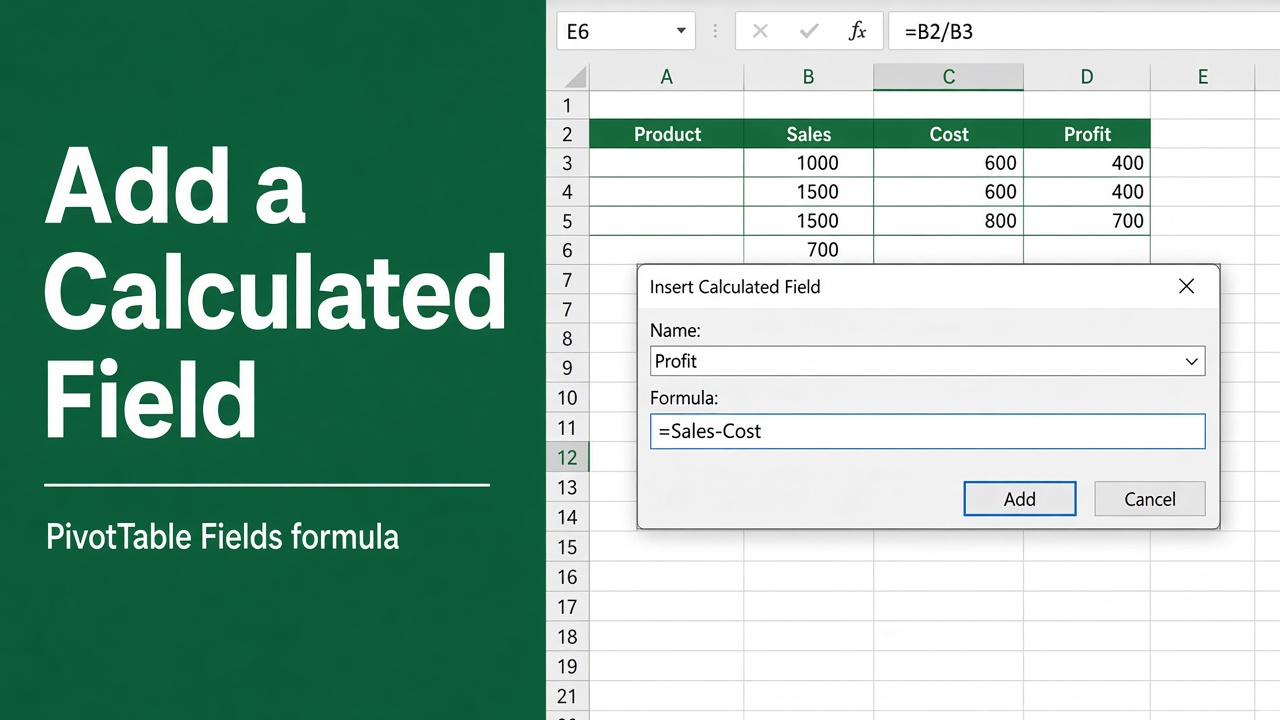
Adding a calculated field in a pivot table helps you perform custom calculations using your existing data set. Instead of changing the original data, you can create new fields that calculate values such as profit, percentage, or ratios directly inside the pivot table.
- Click inside the pivot table and go to PivotTable Analyze > Fields, Items & Sets > Calculated Field.
- Type a Name (e.g. Profit) and build the Formula by double-clicking fields, e.g.
=Sales - Cost. - Click Add, then OK. The new field appears in Values.
Calculated fields work on the sum of each field, not row by row, so =Price * Quantity gives the wrong total. Calculate that in a source column instead. The option is greyed out for Data Model pivot tables; use a measure there.
This feature is especially useful in Excel reports, data analysis, and business dashboards, as it allows users to create dynamic calculations without using complex formulas outside the pivot.
Steps to Add a Calculated Field in Excel Pivot Table
Step 1: Create Your Pivot Table
- Select your data range.
- Go to the Insert tab.
- Click PivotTable.
- Choose to insert it in a New Worksheet or Existing Worksheet.
- Click OK.
Once the pivot table layout appears, drag fields into the Rows and Values areas.
Step 2: Open the Calculated Field Dialog Box
- Click anywhere inside the pivot table.
- Go to the PivotTable Analyze tab on the ribbon.
- Click Fields, Items & Sets.
- Choose Calculated Field from the dropdown.
You’ll see the Insert Calculated Field dialog box.
Step 3: Define the Calculated Field
In the Insert Calculated Field window:
- Enter a Name for your field (e.g., Profit).
- In the Formula box, enter your formula using the names of the fields.
- You can double-click field names from the list to add them to the formula.
Example:
= 'Total Sales' - CostMake sure your field names are correctly typed or selected from the list.
Then, click Add and press OK.
Step 4: View the Calculated Field in Your Pivot Table
Your new calculated field appears as a new column in the pivot table. It works just like any other field and will automatically update when you apply filters, slicers, or refresh your data.
Common Examples of Calculated Fields in Excel
| Field Name | Formula | Description |
|---|---|---|
| Profit | = Sales – Cost | Calculates net profit |
| Profit Margin | = (Sales – Cost)/Sales | Shows margin as a percentage |
| Tax Amount | = Sales * 0.1 | Calculates 10% tax |
| Sales per Unit | = Sales / Quantity | Finds unit sales value |
| ROI | = (Profit / Investment) | Calculates return on investment |
These examples show how calculated fields can be used to add useful metrics without editing the source data.
When to Use a Calculated Field vs a Formula in the Source Data
You should use a calculated field when:
- You don’t want to change the original dataset
- You need to show results inside the pivot table layout
- You want calculations that change dynamically with filters and slicers
You should use formulas in the source data when:
- The calculation needs to be reused in other sheets
- You want full control over cell-by-cell calculations
- The logic is too complex for a pivot table
Editing or Deleting a Calculated Field
To edit a calculated field:
- Click inside the pivot table.
- Go to PivotTable Analyze > Fields, Items & Sets > Calculated Field.
- Select your field from the Name dropdown.
- Update the formula.
- Click Modify.
To delete a calculated field:
- Follow the same steps and click Delete instead of Modify.
This keeps your pivot clean and avoids confusion with outdated fields.
Tips for Using Calculated Fields Effectively
1) Use Field Names Carefully
Field names must match exactly, including spacing and spelling. If a field is called “Total Revenue”, typing “TotalRevenue” will cause an error.
2) Avoid Cell References
Calculated fields don’t support direct cell references like A1 or B2. They only use pivot field names. If you need to reference a cell, use formulas outside the pivot table.
3) Be Aware of Aggregation
Calculated fields operate on summarized data, not on individual rows. This can sometimes produce unexpected results.
For example:
You can also edit a calculated field in a Pivot Table.
A calculated field =Price * Quantity does not add up each row’s revenue. It multiplies the total of Price by the total of Quantity. With two rows (price 10 × 2 units, price 20 × 3 units) the real revenue is 80, but the calculated field shows 30 × 5 = 150. Put row-level math like this in a helper column in the source data, then add that column to the pivot table.
4) Use Number Formatting
After creating a calculated field, apply proper number formatting:
- Select the field in the pivot.
- Right-click > Number Format.
- Choose currency, percentage, etc.
This improves readability.
Limitations of Calculated Fields
Although calculated fields are useful, they do have some limits:
- No support for complex functions like IFERROR, VLOOKUP, or INDEX
- Cannot reference external ranges or named ranges
- Each field in the formula is always summed first; you can’t base a calculated field on an average, count or max
- Not available in pivot tables that use the Data Model (the menu item is greyed out); create a measure instead
- May give wrong results when dealing with averages, percentages, or ratios on a row-level basis
If your calculation logic is too advanced, consider using Power Pivot or adding a helper column in the source data.
Alternative: Use Power Pivot for More Complex Calculations
For more advanced needs, you can use Power Pivot and DAX (Data Analysis Expressions).
Power Pivot allows you to:
- Use functions like CALCULATE, RELATED, FILTER
- Perform row-level calculations
- Handle relationships between tables
- Create measure fields for more control
Power Pivot is available in Excel Professional Plus, Microsoft 365, and some Excel standalone versions.
To enable it:
- Go to File > Options > Add-ins
- Select COM Add-ins
- Check Microsoft Power Pivot for Excel
- Click OK
Then, use the Power Pivot tab to create custom measures that behave like advanced calculated fields.
Final Thoughts
Using a calculated field in a pivot table is a powerful way to perform custom calculations quickly and efficiently. It lets you enhance your reports, summarize meaningful data, and automate calculations without touching the original dataset.
Always remember:
- Use correct field names
- Keep calculations simple
- Format your results for clarity
- Use Power Pivot when you need advanced logic
With these tips, you’ll be able to create dynamic, data-driven reports that provide real value to your business or personal workflow.
FAQs
What is a calculated field in a pivot table?
A calculated field is a custom formula created within a pivot table that performs calculations using existing fields. It does not alter the source data but adds a new field to the pivot table based on the formula you define.
How do I add a calculated field in Excel pivot table?
Click inside your pivot table, go to the “PivotTable Analyze” tab, choose “Fields, Items & Sets,” then select “Calculated Field.” Enter a name and formula, click “Add,” and then “OK” to insert the calculated field.
Can I use cell references in calculated fields?
No, calculated fields in pivot tables do not support direct cell references like A1 or B2. You can only use field names from the pivot table in your formula.
Can I edit or delete a calculated field after creating it?
Yes. To edit, go back to the “Calculated Field” dialog, select the field name, update the formula, and click “Modify.” To delete it, select the field and click “Delete.”
Why does my calculated field show incorrect results?
Calculated fields operate on summarized data, not individual row data. This can lead to unexpected results when trying to calculate ratios or averages. For more accuracy, consider using helper columns or Power Pivot.
What are alternatives to using calculated fields in Excel?
Alternatives include adding formulas in the source data, using Power Pivot for advanced DAX calculations, or creating separate formulas outside the pivot table for more complex logic.